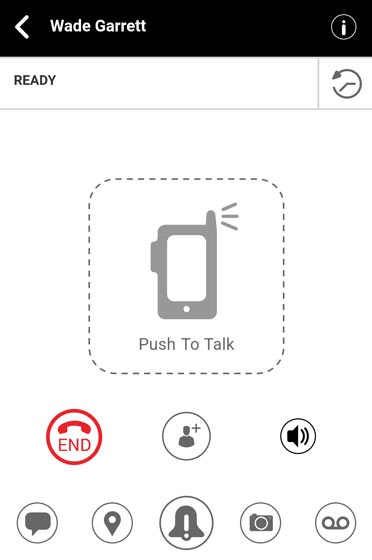
Push to Talk Plus - Send a Voice Message Attachment
Here's how to send a Push to Talk Plus voice message attachment.
- Pictures, video, location, voice messages or PDF files are sent by attachment.
- Voice Message fallback happens when a call is made to unavailable (offline, DND, Busy, Out of coverage) single users or when a call is made to a group where none of the recipients are available.
- During fallback the on-screen display shifts from the PTT icon
to the Voice message icon
and a unique chirping tone is played.
- From the Ready screen, tap theVoice messsage icon
.
Alternatively, tap theHistory iconthen tap the
Voice messsage icon - Touch and hold theVoice messsage iconYour voice message recording must be longer than 3 seconds to send.
- Release theVoice messsage iconSave icon
to send.
Alternatively, tap the Play iconto reivew the message or the Delete icon
to discard your recording.