Kazuna eTalk - Check for Physical Damage
Here's how to determine if your eTalk has liquid or other physical damage.
- Prepaid service customers: Visit a Verizon store to order warranty replacements. Orders for prepaid warranty issues can't be processed via Customer Service.
- Standard service customers: If you need to replace your device under warranty and the device has unreasonable wear and tear or any of the following, you could be assessed a damaged device fee.
Device damage examples include, but are not limited to:
Liquid or Corrosion Evidence
Follow these tips carefully to prevent damage to the device:
- If device gets wet, dry it thoroughly with a clean, soft cloth.
- Don't expose the device to salt water or ionized water.
- Allow the device to air-dry before using it.
- Physical damage to your device such as chips and cracks can significantly reduce its ability to resist dust and water.
- To identify if your device has water damage, check for:
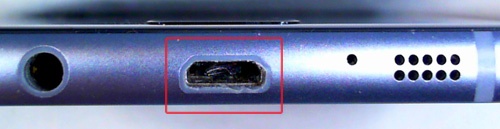
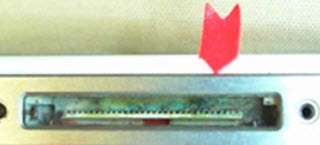
- corrosion, discoloration, or fuzzy growth on the charging, headset, SIM or memory ports.
- moisture under the display screen.
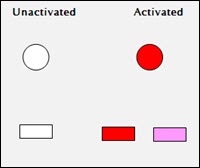
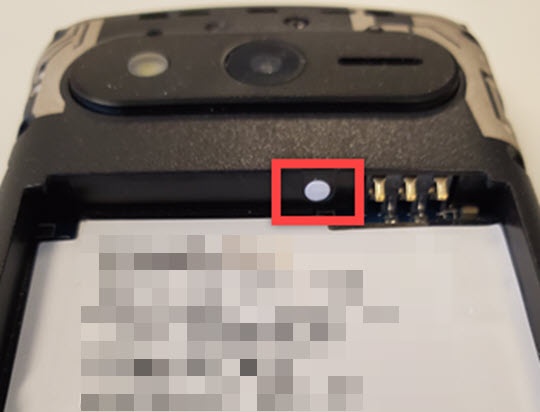
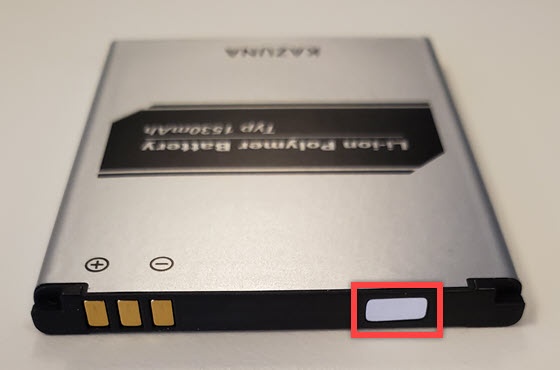
- Liquid Detection Indicator (LDI) / Liquid Contact Indicator (LCI) is activated.Kazuna uses a white field to indicate a device that has had no liquid contact. When the indicator comes in contact with liquid, the white field become a pink or red smudge marks across the white field.The Liquid Damage Indicators (LDI) are located:
- inside in the battery compartment under the SIM card slot.
- on the top edge of the battery.
Damaged Ports
- View the following ports using a bright light and magnifier if possible:
- HeadsetThe image below is an example and may vary by device.
- USB / ChargingExamples of charging port damage include but are not limited to:
- Port loose or wiggles
- Bent
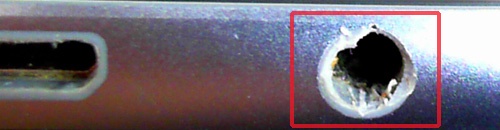
- CorrosionThe images below are examples and may vary by device.
- Memory card
Display or Physical Button Issues
- Examples of screen damage and button issues include but are not limited to:
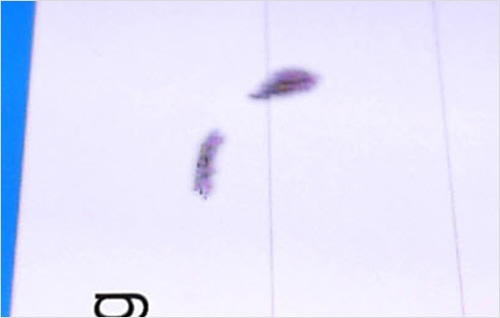
- Bleeding displayThe image below is an example and may vary by device.
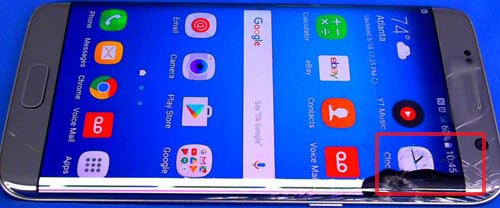
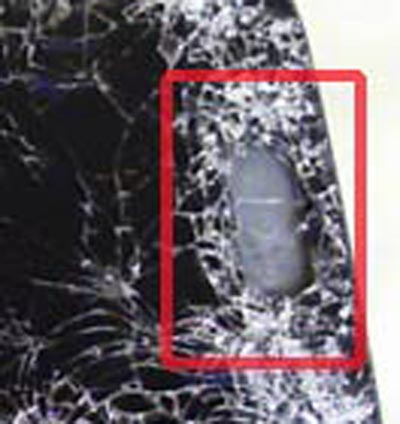
- CracksThe image below is an example and may vary by device.
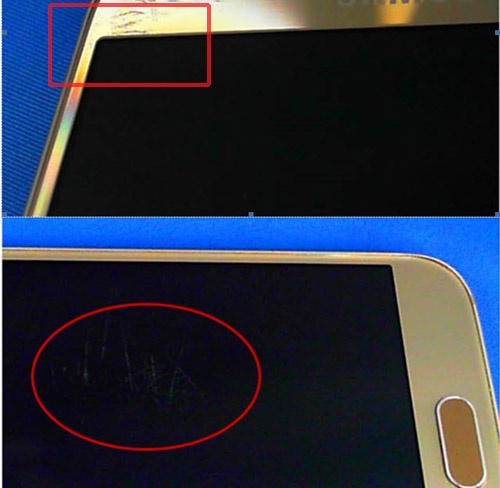
- Excessive scratchesThe images below are examples and may vary by device.
- SeparationExamples of separation include but are not limited to (e.g., lens or housing separating from device frame).The image below is an example and may vary by device.
- Missing physical buttons (e.g., volume, power, home, etc.)The image below is an example and may vary by device.
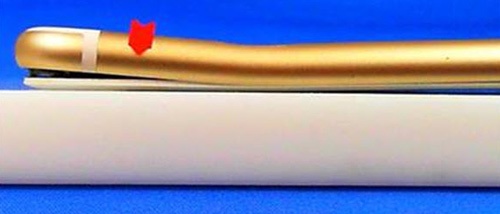
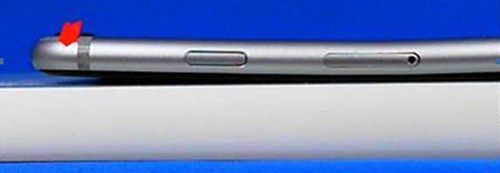
- WarpingDevice or screen won't lay flat.The image below is an example and may vary by device.
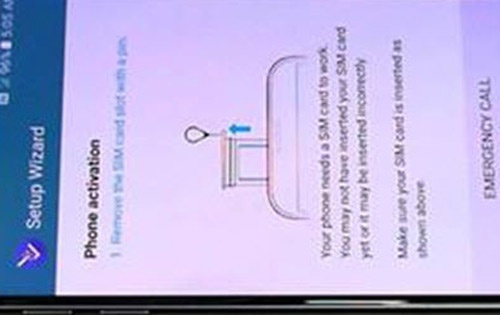
- LinesSolid line(s) present across the screen.The image below is an example and may vary by device.
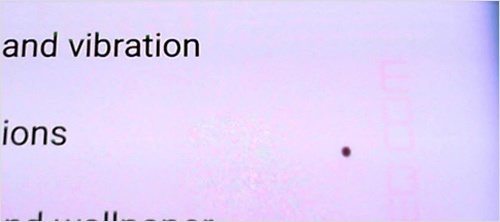
- Pixel DeformitiesCaused by physical impact to screen or device.The images below are examples and may vary by device.
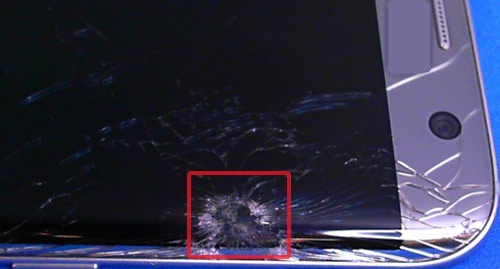
- PuncturesThe image below is an example and may vary by device.

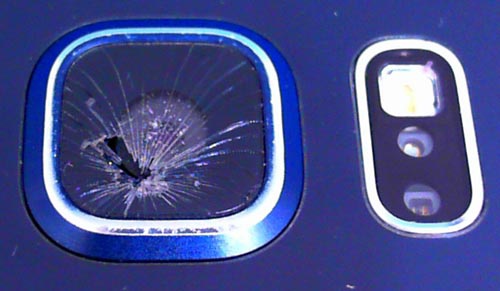
Missing or Cracked Camera Lenses
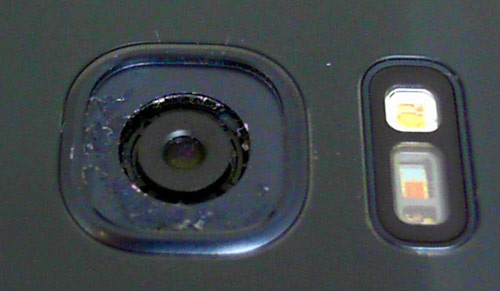
- Missing camera lensThe image below is an example and may vary by device.
- Cracked camera lensThe image below is an example and may vary by device.
Hardware Modifications
- A hardware modification is any physical change made to the device not performed by the manufacturer or an authorized agent of the manufacturer.
- Most alterations of this type are cosmetic but involve opening the device case in a way that voids the manufacturer's original warranty and is considered physical damage.
- Hardware modifications include, but are not limited to:
- bezels or cases that involve opening the case and removing the original housing.
- non-removable back case detached.
- device screens replaced.
- aftermarket decorations affixed permanently to the device.
Replacement Options
If damage is found, several replacement options may be available.