Stream TV - Download and Install Apps
Here's how to install third-party apps on your 1st-generation Stream TV.
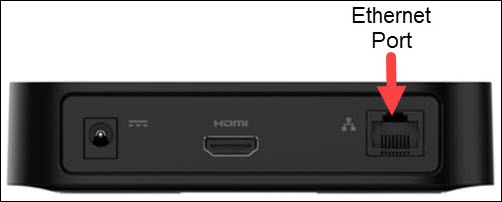
- The steps below apply to the original Stream TV, which can be identified by the Ethernet port on the back of the device. If you have the 2nd-generation Stream TV model, refer to Stream TV - Download and Install Apps.
- To access the Play Store, a Google™ Account is required.
- Some apps require the use of a separate Gamepad or the Remote Control app.
- Ensure your Stream TV is up to date as the following steps apply to the most recent version.
- If necessary, press theHome button
on your Stream TV remote to wake up your device.
- From the Stream TV Home screen, selectApps(at the top).Utilize 5-way navigation pad on the remote to highlight and the center (OK) button to select.
- From the 'Google Play Store & Google apps' section, selectGoogle Play Store.
- Select the desired app.To search for a specific app, select theSearch icon
(upper-right) then speak or type the app name.
If prompted, selectAllowfor Play Store permissions. - SelectInstall.If there is a charge for the app:
- Tap the price (e.g., $1.99).
- Select a payment method (e.g., Google Pay, Redeem, etc.) or select 'Add a payment method' then follow the on-screen steps to set one up.
- If prompted, review the permission or requirements message then selectContinue.
For additional info, see this Stream TV support page.