Samsung Galaxy Watch3 - Create and Send a Text Message
Here's how to create and send a text message via the Messages app from your Galaxy Watch3.
- Currently, the Galaxy Watch3 doesn't support replying to text with an Apple® iPhone®.
- From your Android™ or Apple® iPhone®, ensure your Galaxy Watch3 software is up to date as the steps below apply to the most recent version.
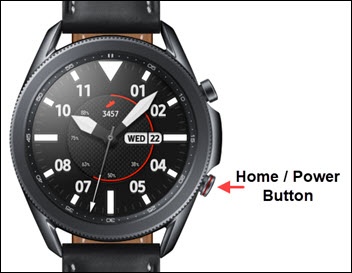
- From the watch screen, press theHome buttonto open the apps screen.
- Tap theMessages icon.
- Tap theNew Message icon(at the top).
- Enter a 10-digit mobile number or a contact name in the 'Recipient' field then tapNext.As the number or contact is entered, a matching contact may appear and can be selected at any time.
- Do one of the following:
- Use Voice Service to create text:
- Tap theVoice icon.If necessary, review the Privacy Policy then tapNext.
- If prompted, tap theCheckmark iconto allow Watch Input to access the microphone.
- Speak your message then tapSend.
- Send an Emoji:
- Tap theEmoji icon.
- Tap the desired emoji then tap theSend icon.
- Type a Message:
- Tap theText icon.
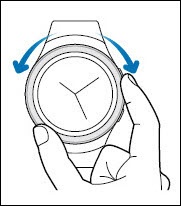
- Turn the bezel left or right to change the text input method (e.g., Write text by hand, keypad, numbers, etc.) then enter a message.
- TapSend.