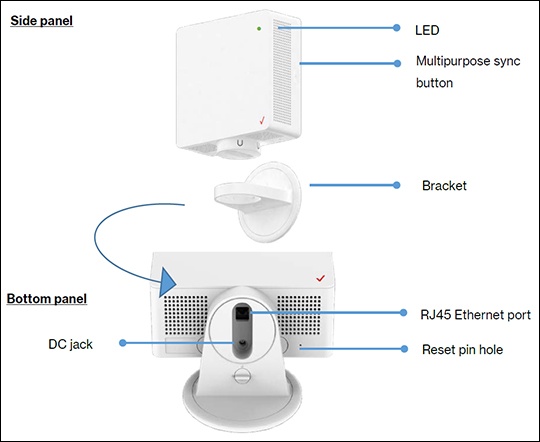
Verizon 5G Internet Gateway (LVSKIHP) Locate Ports, Connectors and Buttons
Verizon 5G Internet Gateway (LVSKIHP)
Locate Ports, Connectors and ButtonsReview this info for how to view the location of the various buttons, ports and connectors on your 5G Internet Gateway (LVSKIHP).
Before you begin
This content is for the 5G Internet Gateway (LVSKIHP). Refer to How to Identify Verizon 5G Home Equipment if you're unsure of the device model.
Steps
- Review the following:
- LED: The LED lights up in different ways to indicate the connectivity status of the 5G Internet Gateway. See LED Status Indicators for a detailed description.
- Multipurpose sync button:Press this button once to connect the 5G Internet Gateway to Wi-Fi Extender or Wi-Fi Extender Mini devices via WPS or Bluetooth®. After the pairing is successful, the LED light will stop blinking blue.
- RJ45 Ethernet port: Connect the 5G Internet Gateway to PC or switch via an Ethernet cable.
- DC jack: Connect the power adapter to the DC jack to provide power to the 5G Internet Gateway from an electrical outlet.
- Reset pin hole: Factory reset the device by pressing the pin hole for 5 seconds.