Verizon 5G Internet Gateway (LVSKIHP) Install / Set Up 5G Home - Window Mount
Verizon 5G Internet Gateway (LVSKIHP)
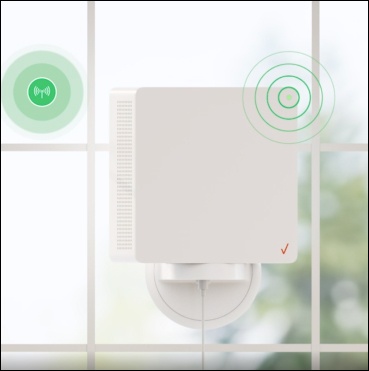
Install / Set Up 5G Home - Window MountMounting your 5G Internet Gateway on a window helps boost your signal strength and improve home Wi-Fi speeds. Learn how to set it up properly for the best performance.
Before you begin
Mounting for the 5G Internet Gateway is performed within the My Verizon app for Google™ Android™ and Apple® iOS.
Steps
- Make sure to test for signal prior to mounting the 5G Internet Gateway.
- Using the provided wipes, clean the window above the marker you placed then tapContinue.
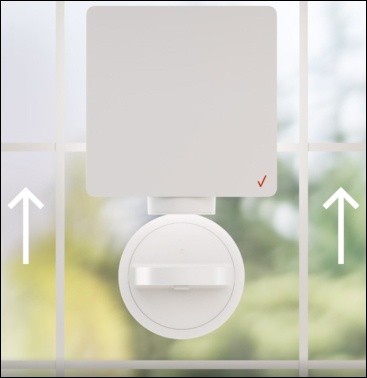
- Unplug the AC adapter and take the 5G Internet Gateway out of the bracket then tapContinue.Watch this video for a demo.
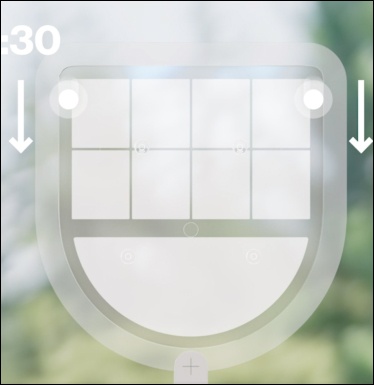
- Peel and firmly press the gecko tape plate evenly to the window for a full 30 seconds with the curved part at the bottom then tapContinue.Watch this video for a demo.Do not touch the exposed gecko tape before mounting or press the window too hard.
- Attach the mounting bracket to the Gecko tape plate. Press them together and pull down on the mounting bracket until you feel it click into place then tapContinue.Watch this video for a demo.
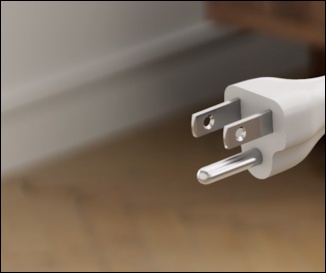
- Plug the device back in then tapContinue.
- Swivel the 5G Internet Gateway so it faces the 5G antenna found earlier then tapContinue.Watch this video for a demo.Tap5G Mapto help swivel the 5G Internet Gateway towards the 5G antenna.
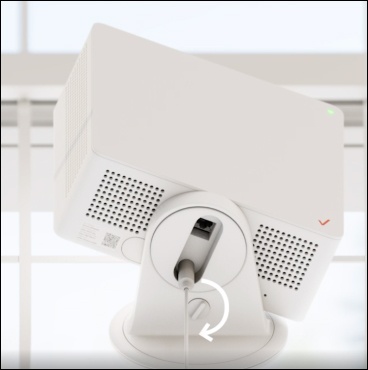
- Turn the lock under the bracket 90° to stabilize the device then tapContinue.Watch this video for a demo.
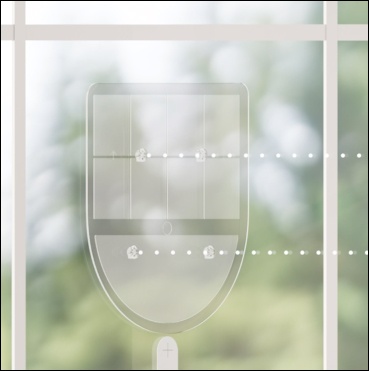
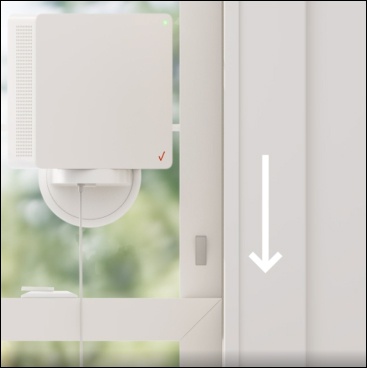
- Expose the window wedges' adhesive backing and stick them to the window frame to prevent the window from hitting the device then tapContinue.Watch this video for a demo.
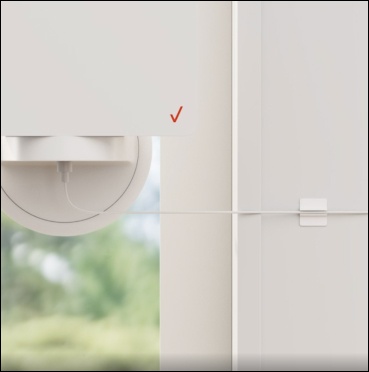
- Use the provided cable guides to tidy up any extra cord slack then tapContinue.Watch this video for a demo.
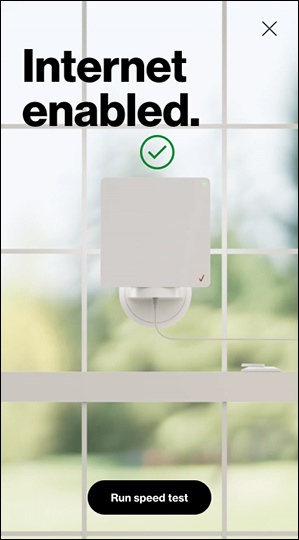
- 5G signal is confirmed and internet is enabled. TapRun speed testto continue.This may take up to 5 minutes.Click here for more info on running a speed test.If prompted, sign in to My Verizon.