Verizon 5G Internet Gateway (LVSKIHP) Install / Set Up 5G Home - Wall Mount
Verizon 5G Internet Gateway (LVSKIHP)
Install / Set Up 5G Home - Wall MountLearn how to properly wall-mount your 5G Internet Gateway to maximize your home Wi-Fi coverage, improve signal strength, and keep your setup clean and organized.
Before you begin
Mounting for the 5G Internet Gateway is performed within the My Verizon app for Google™ Android™ and Apple® iOS.
This content is for the 5G Internet Gateway (LVSKIHP). Refer to How to Identify Verizon 5G Home Equipment if you need to verify the model you're using.
Steps
- Make sure to test for signal prior to mounting the 5G Internet Gateway.
- Get a drill, hammer, Phillips screw drivers and a pencil to mark the hole then tapContinue.
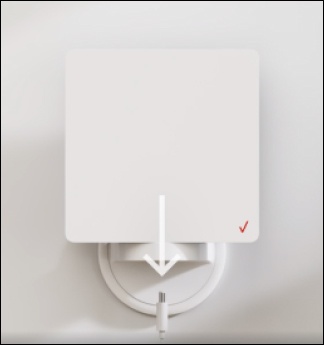
- Unplug and carefully pull the 5G Internet Gateway out of the bracket then tapContinue.Watch this video for a demo.
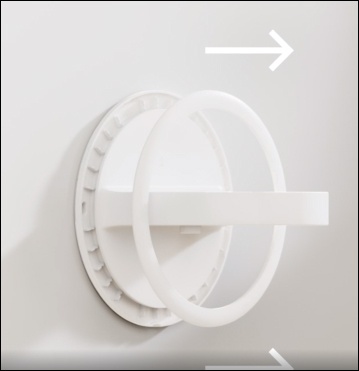
- Pry off the decorative ring covering the mounting holes in the bracket then tapContinue.Watch this video for a demo.
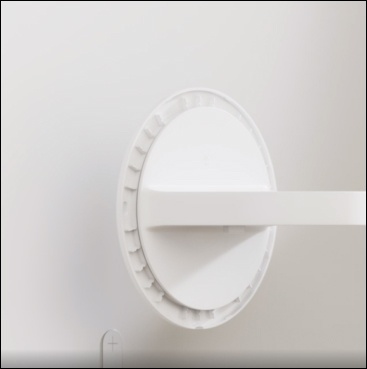
- Place the bracket above the marker you placed then use a pencil and mark the wall at the mounting cutouts on the bracket. TapContinue.Watch this video for a demo.
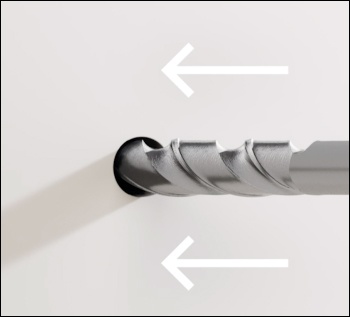
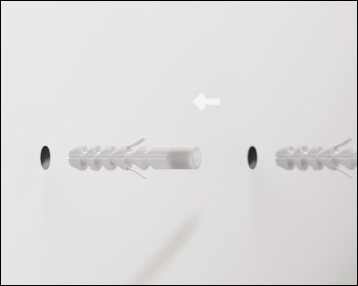
- Drill two holes at the mark then use the provided wall anchors and push them into the holes. TapContinue.Watch this video for a demo.
- Align the bracket to the anchors in the wall, then drive the screws into the anchors and attach the bracket to the wall. TapContinue.
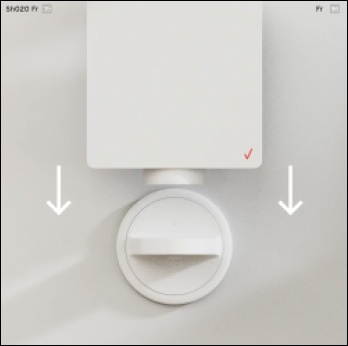
- Attach the device to the bracket then tapContinue.
- Plug the device back in then tapContinue.The device will take approximately 2 minutes to boot up.
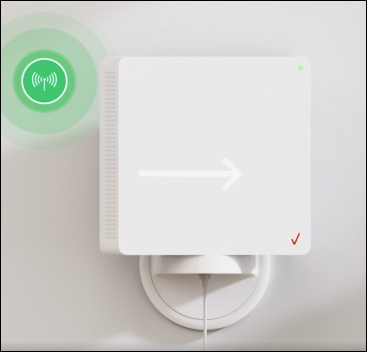
- Swivel the 5G Internet Gateway towards the 5G antenna you found earlier then tapContinue.Watch this video for a demo.Tap5G Mapto help swivel the 5G Internet Gateway towards the 5G antenna.
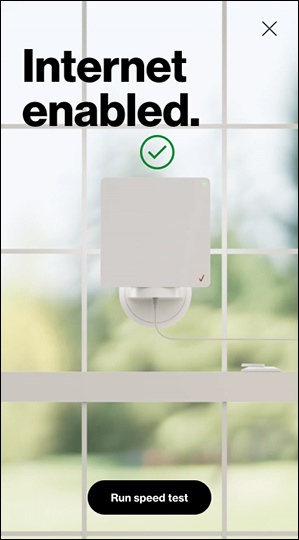
- 5G signal is confirmed and internet is enabled. TapRun speed testto continue.This may take up to 5 minutes.Click here for more info on running a speed test.If prompted, sign in to My Verizon.