Verizon 5G Internet Gateway (LVSKIHP) Install / Set Up 5G Home - Speed Test
Verizon 5G Internet Gateway (LVSKIHP)
Install / Set Up 5G Home - Speed TestChecking your internet speed is a great way to see if your 5G gateway is positioned for peak performance. Follow these easy steps to test it now.
Before you begin
This content is for the 5G Internet Gateway (LVSKIHP). Refer to How to Identify Verizon 5G Home Equipment if you're unsure of the device model.
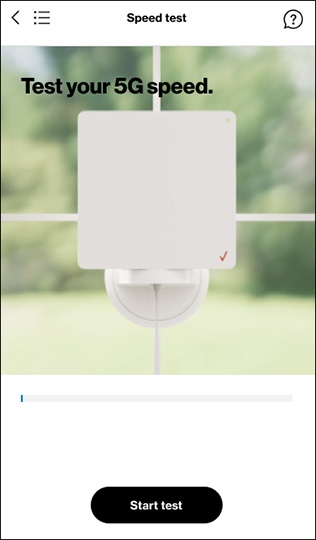
This speed test is performed in the My Verizon app during the set up process for 5G Internet Gateway.
Here's info on how to run a speed test in the My Verizon app.
You can also run a speed test on the My Verizon website.
Steps
- TapStart testto begin the speed test.
- Once download, upload, and ping results display, tapContinueto see the Wi-Fi credentials.Learn more about these metrics:
- Download speed: The number of bytes per second that data travels from a remote or local server to the user's computer or from the user's computer to a mobile device.
- Upload speed: The upload speed is the rate that data is transferred from the user's computer to the internet.
- Latency: The time it takes for data to receive a response. A fast ping means actions are more immediate. This is important for apps where input from users requires immediate response like video games. It is measured in milliseconds (ms).