Stream TV - Add an Existing Google Account
Adding a Google (Gmail) account to your 2nd-generation Stream TV lets you download apps and services.
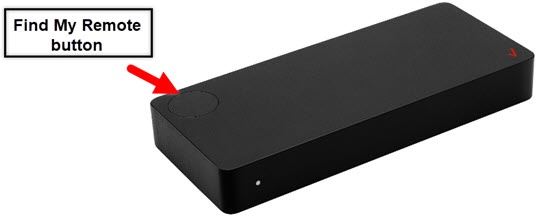
- The steps below apply to the 2nd generation Stream TV which can be identified by the Find My Remote button. If you have the original Stream TV model, refer to Stream TV - Add an Existing Google Account.
- If you don't already have an account, visit this Google site for help.
- Ensure your Stream TV is up to date as the following steps apply to the most recent version.
- If necessary, press theHome button
on your Stream TV remote to wake up your device.
- From the Stream TV Home screen, select theSettings menu
(upper-right).
Use 5-way navigation pad on the remote to highlight and the center (OK) button to select. - Navigate: .
- If prompted, from the 'Choose account type' screen selectGoogle.
- From the 'Make the most of your TV' screen, selectSign In.
- Enter your Google account email address or phone number then select theEnter icon
.
- Enter your Google account password then select theEnter icon.