Stream TV - Restart / Soft Reset
Here's how to restart your 2nd-generation Stream TV if it crashes or resets, freezes or runs slow.
A soft reset (restart) can resolve issues like continuous resetting / rebooting, device crashing, freezing, device locks up and the screen doesn't respond.
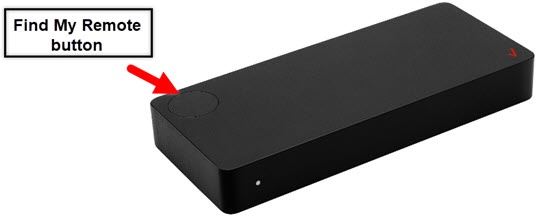
- The steps below apply to the 2nd-generation Stream TV which can be identified by the Find My Remote button. If you have the original Stream TV model, refer to Stream TV - Restart / Soft Reset.
- A soft reset (turning the device off then back on) is similar to restarting a desktop computer and is one of the first steps in troubleshooting a device. In most cases, a soft reset won't affect data on the device.
Preferred Method
- If necessary, press theHome button
on your Stream TV remote to wake up your device.
- From the Stream TV Home screen, select theSettings menu
(upper-right).
Utilize 5-way navigation pad on the remote to highlight and the center (OK) button to select. - Navigate: .
- SelectRestart.
- To confirm, selectRestart.
Alternate Method
Remove the power adapter from the device and wait approximately 10 seconds prior to re-inserting it.