Stream TV - Sign In / Out of Verizon Account
Here's how to sign in or out of your Verizon account on your 2nd-generation Stream TV.
Connecting your Verizon account enables account billing of movies, show purchases and rentals.
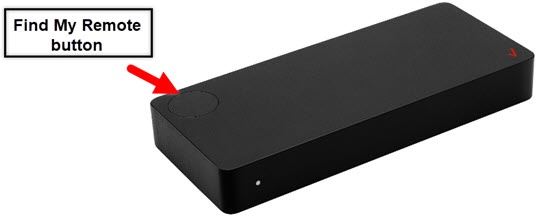
- The steps below apply to the 2nd-generation Stream TV which can be identified by the Find My Remote button. If you have the original Stream TV model, refer to Stream TV - Sign In / Out of Verizon Account.
- Ensure your Stream TV is up to date as the following steps apply to the most recent version.
- To perform the steps below, you need to register for My Verizon first.
- If necessary, press theHome button
on your Stream TV remote to wake up your device.
- From the Stream TV Home screen, select theSettings menu
(upper-right).
Utilize 5-way navigation pad on the remote to highlight and the center (OK) button to select. - SelectAccount Preferences.
- SelectManage accountsthen do one of the following:
- Sign in using your phone or computerIf you're connected to a Wi-Fi network that features host isolation (e.g., guest networks, etc.) sign in using your remote.
- Make sure your device is connected to the same Wi-Fi network as your Stream TV.
- On the phone or computer, open a web browser and go to https://stream.verizon.com/activate.If using a smartphone, scan the QR code shown on the TV screen with a QR code reader.
- Enter the code shown on your TV screen on the website where prompted.
- If prompted, enter your My Verizon User ID or mobile number and Password, then selectSIGN IN.
- Sign in using your remote
- SelectUse remote instead.
- Enter your My Verizon User ID or mobile number then select theEnter icon.
- Enter your My Verizon password then select theEnter icon.
- Sign out and disable account billing:
- SelectSign out.
- SelectSign outto confirm.
For additional info, see this Stream TV support page.