Samsung Galaxy Watch - Add Cellular Plan
Here's info on how to add a cellular plan for your eSIM to your Galaxy Watch.
Before you begin, ensure:
- your Galaxy Watch has been paired with an Android™ smartphone or Apple®iPhone®.Refer to Connect to New Phone for assistance.
- your companion phone has a cellular connection.If activating with Number Share, the companion smartphone must be connected to active Verizon service on the same account as the Galaxy Watch.
- your Galaxy Watch is charged and powered on.
Add Cellular Plan via Android Smartphone
- The Galaxy Watch can be set up via Number Share or as a standalone device. To use the Galaxy Watch without a companion device, complete the steps below then refer to Set Up as a Standalone Device.To set up with Number Share, the companion smartphone must be connected to active Verizon service on the same account as the Galaxy Watch.
- Before completing these steps, verify:
- your companion Android smartphone has a cellular or Wi-Fi connection.
- your eSIM activation has been processed and you've received the QR code via email.
- you're in a Verizon coverage area.
- your Galaxy Watch has been paired with an Android™ smartphone.Refer to Connect to New Phone for assistance.
- Open theGalaxy Wearable appon your companion phone.
- TapMobile plans.
- If a plan has previously been added, tap theMenu icon
(upper-right) then tap
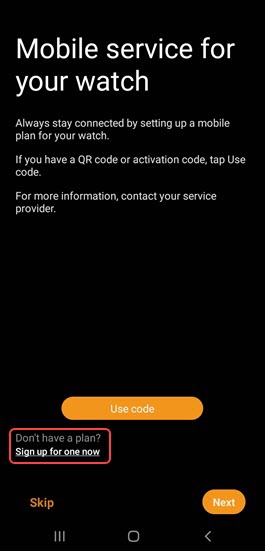
Add mobile plan. - From the 'Mobile service for your watch' screen, do one of the following:
- Set up with a QR code:
- TapUse code.If prompted, tapAllowfor camera permissions.
- Point the smartphone's camera at the QR code below and scan it.The QR code will only work if the Galaxy Watch has been activated on a Verizon mobile number.
- TapUse plan.
- Set up without a QR code on an existing Verizon account with a new Number Share line of service (if the Galaxy Watch was purchased outside of Verizon):
- TapSign up for one now.
- TapNext(lower-right).
- Ensure the phone number to your Verizon smartphone displays then enter your password and tapContinue.
- Review the info, then tapI want NumberShare.To continue without activating the watch, tapNot now.
- TapOK.
- Allow a few minutes for service to activate. When complete, tapDone.

Continue to use in conjunction with a companion smartphone for maximum functionality. To unpair your companion smartphone and use the Galaxy Watch as a stand alone device, reset the watch then set up as a stand alone device.
Standalone mode can't be used with Number Share.
Add Cellular Plan via Apple iPhone
- The Galaxy Watch can be set up via Number Share or as a standalone device. To use the Galaxy Watch without a companion device, complete the steps below then refer to Set Up as a Standalone Device.
- Before completing these steps, verify:
- your eSIM activation has been processed and you've received the QR code via email.
- your Galaxy Watch has been paired with an Apple® iPhone®.Refer to Connect to New Phone for assistance.
- your companion Apple iPhone has a cellular or Wi-Fi connection.
- you're in a Verizon coverage area.
- Open the Samsung Galaxy Watch (Gear S) app.
- TapMobile plans.
- If a plan has previously been added, tap theMenu icon
(upper-right) then tap
Add mobile plan. - From the 'Set up a mobile plan' screen, selectUse code.
- If prompted, tapOKto allow Galaxy Watch to access your camera.
- Point the iPhone's camera at the QR code below and scan it.The QR code will only work if the Galaxy Watch has been activated on a Verizon mobile number.
- TapUse plan(at the bottom).The watch restarts.This process may take up to 2 minutes.
- Allow a few minutes for service to activate. When complete, tapDone.
Continue to use in conjunction with a companion smartphone for maximum functionality. To unpair your companion Apple iPhone and use the Galaxy Watch as a standalone device, reset the watch then set up as a stand alone device.
Standalone mode can't be used with Number Share.