Create SMTP Connections - Enterprise Messaging (EMAG)
Here's how to create SMTP Connections via the Enterprise Messaging portal.
The EMAG system can store up to 60 unique SMTP connections per customer, however only 35 can be active at any one time.
- Sign in to Enterprise Messaging.
- From the left navigation menu hover over 'APIs' then clickConnections.To view the navigation menu, click theredtab.
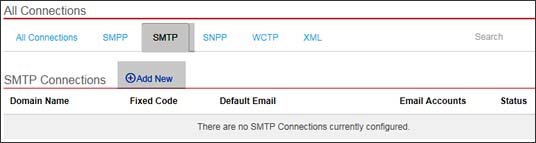
- ClickSMTP tab.
- From the SMTP connections tab, clickAdd New.
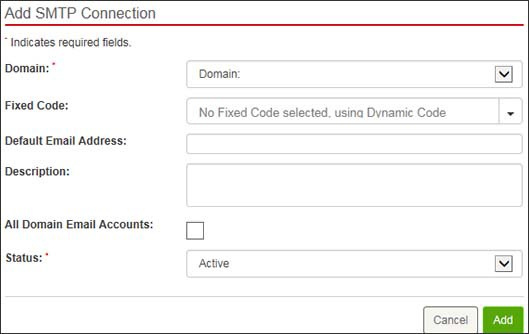
- Enter the appropriate info (e.g., Domain, Fixed code, Default Email Address, etc.) then clickAdd.All Domain Email Accounts checkbox allows EMAG to accept messages from any sender whose email domain matches the domain of the SMTP connection. If the checkbox is unavailable, this feature has not been enabled.The Default Email Address will receive all incoming messages for the connection.
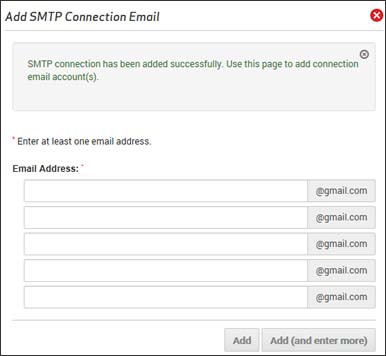
- If All Domain Email Accounts is not checked, EMAG verify authentication for the individual email addresses entered via the Add & Proceed To Enter Email Accounts button.
- Enter email address and then clickAdd.The domain is already provided.Authentication for SMTP connections in EMAG is done based on the incoming IP, email domain and/or sender email address.