Access Control - Verizon 4G LTE Broadband Router
Here’s how to control which devices can access your 4G LTE Broadband Router.
Registered Devices
These steps apply to devices that are currently connected or have been previously connected to the network.
- Access the router configuration tool.For assistance with accessing the router configuration page, refer to Accessing the Router Configuration.
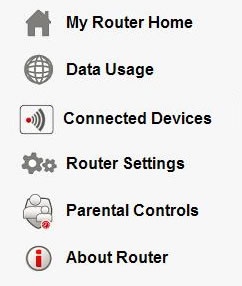
- ClickConnected Devices(on the left).
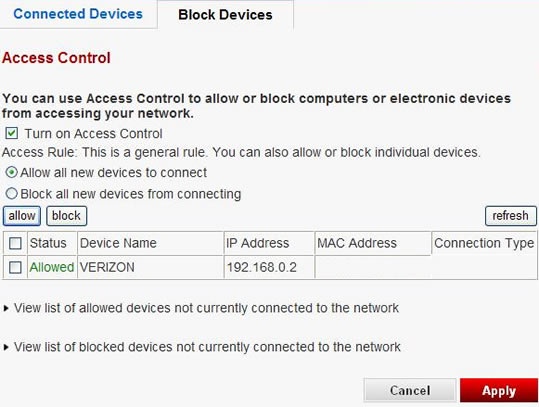
- From the Block Devices menu (at the top), ensure theTurn On Access Control radio buttonis checked and adjust as desired then clickApply.To turn off Access Control, ensure the button is unchecked.
- To allow all new devices to connect, ensure the corresponding radio button is checked.
- To block all new devices from connecting, ensure the corresponding radio button is checked.
- To allow or block devices that are currently connected, ensure the devices are checked then click Allow or Block.
- To remove devices not currently connected from the allowed list, clickView list of allowed devices not currently connected to the networkthen select the device(s) then clickDelete.
- To add devices not currently connected to the blocked list, clickView list of blocked devices not currently connected to the networkthen select the device(s) then clickDelete.
Media Access Control (MAC) level
Follow these instructions to manually control network access for specific devices.
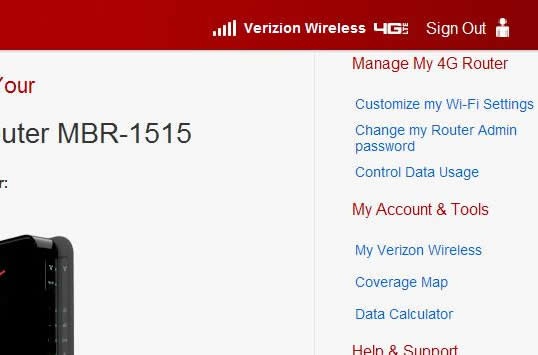
- Access the router configuration tool then clickCustomize my Wi-Fi Settings(upper-right corner).For assistance with accessing the router configuration page, refer to Accessing the Router Configuration.
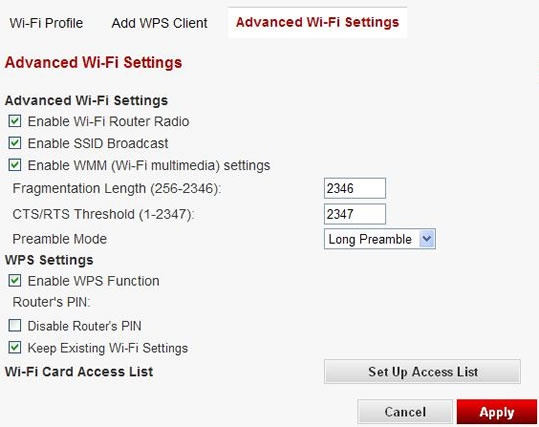
- From the Advanced Wi-Fi Settings tab, clickSet Up Access List(lower-right corner).
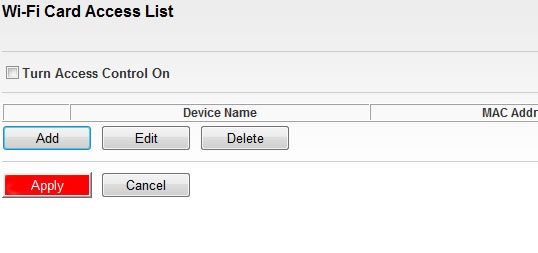
- Ensure theTurn Access Control On boxis checked and adjust as desired then clickApply.
- To add a device:
- ClickAdd.
- Enter the device name and then clickAdd.
- To edit an entry:
- Ensure the device is selected then clickEdit.
- Edit then clickAccept.
- To delete an entry, ensure the device is selected then clickDelete.
MAC address - Windows
Follow these instructions to manually determine what the MAC Address is.
- Click on the Start icon located in the lower-left corner of the computer screen.
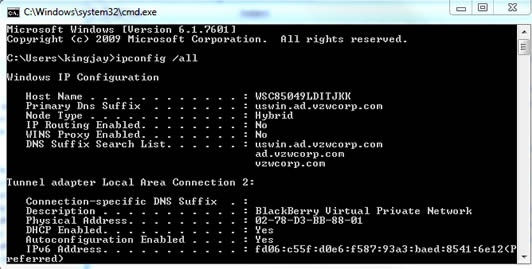
- Typecmdin the Search programs and files box.This brings up the command prompt.
- Typeipconfig /allinto the command prompt.
- Refer to the Physical Address, which is the MAC Address.

MAC address - Mac OS X
Follow these instructions to manually determine what the MAC Address is.
- From the dock at the bottom of the screen, navigate to: .
- ClickAdvanced.
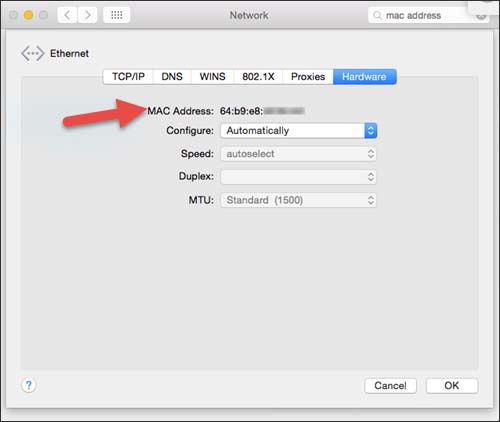
- ClickHardware.The MAC Address displays as shown below.