Stream TV - Factory Data Reset (Powered On)
Here's how to factory / hard reset your 1st-generation Stream TV if the screen freezes or app, audio or sync issues occur.
Perform a factory data reset only if necessary as it removes your Google™account and all data including system data, app data and remote data.
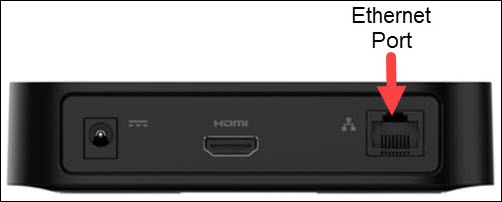
- The steps below apply to the original Stream TV, which can be identified by the Ethernet port on the back of the device. If you have the 2nd-generation Stream TV model, refer to Stream TV - Factory Data Reset (Powered On).
- Ensure your Stream TV is up to date as the following steps apply to the most recent version.
- If necessary, press theHome button
on your Stream TV remote to wake up your device.
- From the Stream TV Home screen, select theSettings menu
(upper-right).
Utilize 5-way navigation pad on the remote to highlight and the center (OK) button to select. - Navigate: (at the bottom).
- Review the 'Reset' message then selectReset.
- SelectErase everything.Allow a few minutes for the reset to complete.If applicable, set up the device again. If the Stream TV Voice Remote isn't available, the Remote Control app and a wired internet connection is required for set up.
For additional info, see this Stream TV support page.