Verizon Receiver (LV65) Install / Set Up 5G Home - Indoor Signal Test
Verizon Receiver (LV65)
Install / Set Up 5G Home - Indoor Signal TestRunning an indoor signal test helps ensure your Verizon Receiver (LV65) is placed in the optimal spot for maximum 5G Home internet speeds and reliability.
Before you begin
Don't open boxes until instructed.
Enable Bluetooth® on the device you're connecting to the Verizon Receiver (LV65).
Everything you need is in the box.
Signal test for the Verizon Receiver (LV65) is performed within the My Verizon app for Google™Android™ and Apple® iOS.
Steps
- From the 'Let's test for a 5G signal' screen tapContinue.Watch this video for a demo.
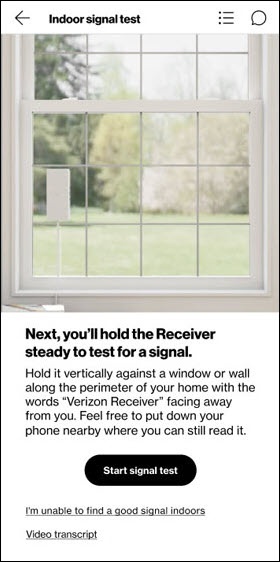
- From the 'Indoor signal test' screen tapStart signal test.Watch this video for a demo.Tips for finding a good 5G signal
- The words “Verizon Receiver” should face out towards the 5G antenna.
- Find the clearest path to the antenna.
- If indoors, test at a window first. If you don’t have a window that faces an antenna, test on a wall on the perimeter of your home. Upstairs is recommended.
- The receiver must be still to determine signal strength.
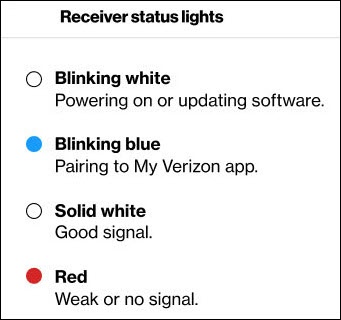
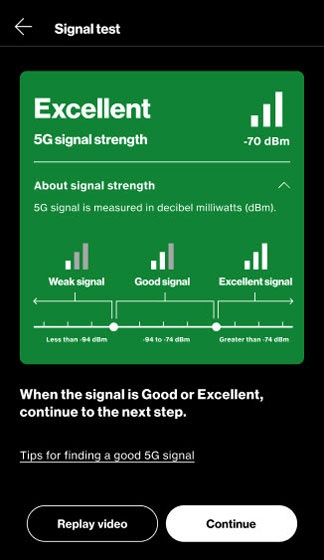
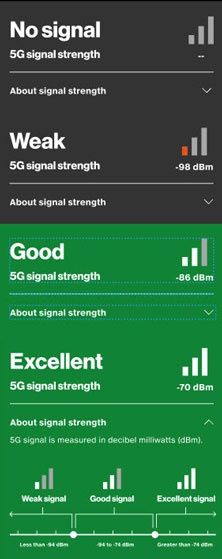
- Once the receiver LED displays a solid white light and the My Verizon app displays 'Good' or 'Excellent', tapContinue.The continue button will not function until a 'Good' or 'Excellent' signal is acquired.If needed repeat step 2 from a different window or from a wall on the perimeter of the home.After 10 minutes an 'It looks like you're having trouble finding a signal' notification displays.TapExplore more optionsand continue to Outdoor Signal Test.
- Mark the location where you found a good signal by pulling a sticker off the receiver and placing it just below where you’ll mount it then tapContinue.Watch this video for a demo.
- From the 'Where did you find the signal?' screen select one of the following and tapContinue: