How do I set parental controls on my home router?
From bedtimes to safe lists: how to set age-appropriate rules on your internet router

When parents ask me about home internet routers, I often say that a router is one of the most important devices in your house. Virtually every smart device runs through it. Nearly every phone, tablet, game console and smart TV connects through that little box in the corner.
A router can decide:
- Who can get online
- When they can get online
- What kind of content they can access
Still, most parents have a limited idea how to use one. But this guide can help. Here’s how to set up parental controls on your router, why it matters and how to make it work for your life.
What parents get wrong about parental controls and routers
The biggest mistake parents make is assuming their router can control everything. It can’t. A router controls the internet connection, but it can’t control what happens inside an app.
For example, you can block streaming services like Netflix at the router level, but you can’t tell your router to block R-rated movies. That’s because the router doesn’t know the content being streamed. You still need to set age limits and profiles inside apps and devices, too.
My advice: Apply parental controls to your router and internet first to set high-level rules, and use other apps to place more-specific controls on a device’s data, like Verizon Family Plus for smartphones.
What you need to know about the parental controls on your router
Routers let you manage everything that connects to Wi-Fi in your house. Most routers with parental controls let you change those settings from an app on your phone, like Verizon Home App. Setting up your router’s parental controls means you can:
- Pause internet access for certain devices.
- Set bedtimes so Wi-Fi shuts off automatically.
- Block entire categories of content, like gambling or adult sites.
- Create profiles for each child, so their rules and schedules fit their age and stage.
How to log in to your router with parental controls from the Verizon Home app:
Open the Verizon Home app.
Scroll to Parental Controls.
Select + Profile to create a new one.
Add a name, photo (if you’d like) and color for easy recognition.
Assign your child’s devices to that profile.
Choose an age-based content filter or customize your own.
These should be every parent’s favorite settings in a router’s parental control panel
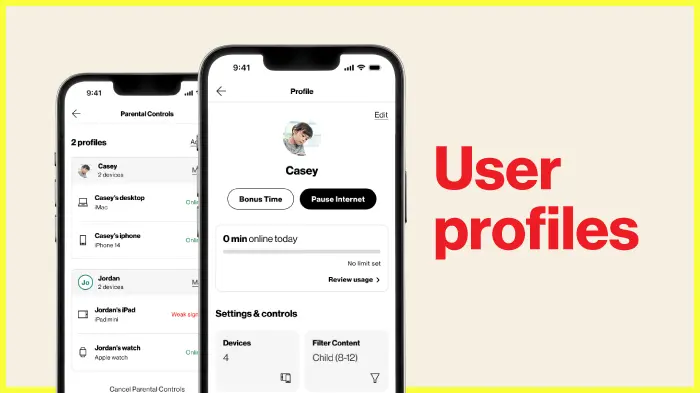
User profiles
What it is: Like the different profiles you set up in your streaming services like Netflix, for example, you should set up one for each child or group of devices.
Why it matters: It lets you turn things off for one kid’s device but keep Wi-Fi running in the rest of the house. That means your daughter’s tablet can go offline at 8 PM without cutting off your tablet.
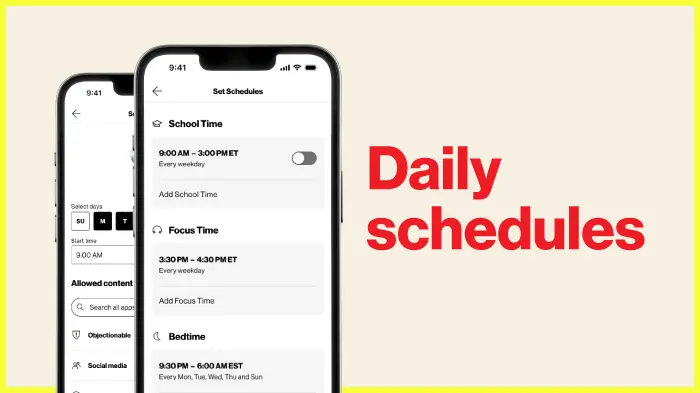
Internet schedules
What it is: Set automatic Wi-Fi schedules for school, focus time or bedtime.
Why it matters: Kids thrive on consistency. Wi-Fi that turns off at the same time every night becomes part of the routine, not a punishment.
Time limits
What it is: Set daily caps on total internet time per profile.
Why it matters: This helps kids balance homework, gaming and downtime.
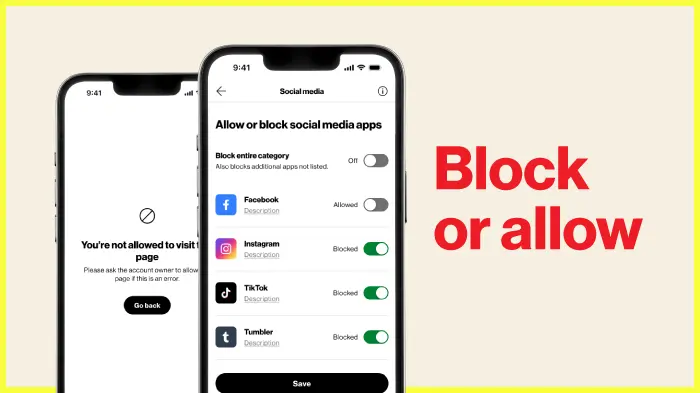
Content filtering
What it is: Block access to specific apps, categories or age-restricted sites.
Why it matters: You can’t be aware of everything they encounter online, but filters help.
Reports and alerts
What it is: These activity summaries show when and how your kids use the internet.
Why it matters: You can become aware of red flags early and talk about them early on.
Parental controls to consider setting on your router, by age
Most routers let you create separate profiles per child—label them by name (“Ella’s iPad,” “Jayden’s tablet”) and apply different schedules or filters for each one. Here are a few recommendations, broken out by age range.
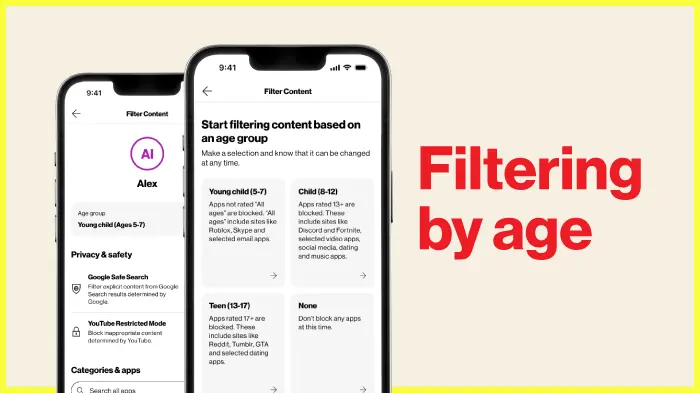
Ages 5 – 7: Keep it simple
My approach:
I use what I call a safe-list-only profile, meaning they can only go to websites I’ve approved. Think age-appropriate websites like “PBS Kids,” “Starfall” or their school learning sites. Nothing else. Kids this young don’t need a search bar or unlimited access to the web.
How I do it:
I manually add approved websites and block all others. Check for language like “Allow all the time,” and add the sites they can access.
Why it matters:
This age group is the most vulnerable to accidental exposure and too much screen time. Safe lists and schedules keep them protected while still letting them explore safely.
Ages 8 – 12: Router rules for school tablets and Chromebooks
My approach:
Start focusing more on schedules. This is the age when school-supplied devices enter the picture, and they can be tricky. Many connect back to the school’s network using a virtual private network, or VPN, which means your home router can’t always apply your rules for specific sites.
How I do it:
I set internet schedules with clear homework and bedtime cut-offs. If my home Wi-Fi turns off at 8 PM, homework gets done earlier, and there’s a natural boundary.
Why it matters:
A simple Wi-Fi bedtime helps prevent late-night browsing and keeps your home rules consistent across devices.

Ages 13 – 17: Entering the social media age
My approach:
By the teen years, I ease up on content filters and focus more on trust. I still keep an internet schedule with a clear cutoff, usually when I go to sleep, but I open up more sites, including social media.
How I do it:
I keep reporting turned on so I can check activity summaries. I also make sure every device, including each of their school devices, is part of their router profile. Otherwise, it can slip through the cracks.
Why it matters:
Teens need autonomy, but structure helps them stay balanced. Router settings aren’t about control, they’re about accountability. And when kids know you’re paying attention, they make better choices online and off.
We’ve got you: You’re there for them with Verizon Family. Verizon’s there for you—including our 3-year price lock.*
*Learn more about our 3-year price lock guarantee.
Screenshot this for later

Home internet router rules
- Your router runs the Wi-Fi show. It’s the gatekeeper for every device in your house.
- Change the default password so only you can adjust the settings.
- Create user profiles for each family member. Add bedtimes, homework breaks or screen-free dinners.
- Sync screen schedules with Verizon Family Plus. Your router covers Wi-Fi; Verizon Family Plus helps you set those same limits on their smartphone.
verizon.com/parenting