How to set up the Verizon Cloud app.
| Session Status |
|---|
|
Due to inactivity, your session will end in approximately 2 minutes. Extend your session by clicking OK below. Due to inactivity, your session has expired. Please sign in again to continue. |
Video overview
Generated by AI. Verify if needed.
Download the Verizon Cloud app from the Apple App Store or Google Play. Android devices might already have it installed. Open the app and follow the prompts to allow notifications and access to your device. Steps may vary depending on your operating system. Watch our video for details.
00:00
00:03
To get started, download the Verizon Cloud app from the Apple® App® Store or Google™ Play. If you have an Android™ device, it might already be installed.
00:12
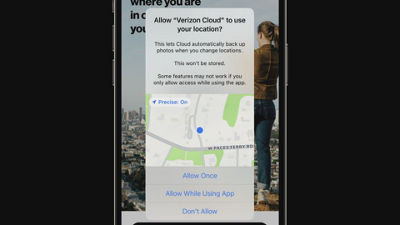
Open it up and follow the prompts to allow notifications and access to your device for backup.
00:17
It's important to allow access to your contacts, photos and videos. Depending on your operating system, these steps might look a little different, like allowing Location access on iOS.
00:28
Review the terms and conditions and select Get Started.
00:31
You'll see the available storage plan options. Choose the plan that works best for you. Review the plan details and sign up.
00:40
Android users will have the option to select additional categories for Cloud to backup. You've already allowed access to your photos, videos and music so they'll already be selected. Make any additional selections and allow access.
00:54
Now's a great time to complete your Cloud Profile, so you never get locked out of your account in the future. Once complete, you're all set.
01:03
Now you're ready to start your first backup.
01:06
On the home screen, select the orange Upload now button to begin. This might take a while, but you can keep an eye on your progress. For faster uploads, turn off your screen lock and keep Cloud open while staying connected to Wi-Fi.
01:19
A green check will appear once the upload is complete.
01:22
New content from your phone will sync to the Cloud everyday for safe keeping.
01:27
You can invite up to 4 users if you have the 2TB or Unlimited Group plan.
01:32
Everyone gets their own private storage account at no extra cost. You'll share the storage capacity between members. They can use unlimited devices, including compatible phones, computers and tablets.
01:44
To invite members, go to your Settings by selecting the Gear icon from the top right. Scroll down to Storage and select Add & Manage Members.
01:53
You have two ways to add new members. To add members from your existing wireless plan, choose From your plan. Next, select the number you'd like to add.
02:03
Selected members will be added to the shared Cloud plan and will receive a text with a link to download the Cloud app.
02:09
You can also add new members by sending them an email. To invite a new user, select the plus (+) sign. Enter their email, give them a nickname and send the invite.
02:19
Once the user accepts the invite, you'll see their shared Cloud usage displayed on the graph.