Preparation
| Step | Owner | Description |
| 1 | Customer and Verizon | You must be a Verizon Private IP customer to complete this activation process. If not, a Private IP connection must be established to at least one of your locations. As this component is probably the one with the longest deliverable timeframe, you should not proceed with the rest of the activation process until this step is completed. |
| 2 | Verizon | If you have plans to use MSS Cloud Firewall as an addition to you Secure Cloud Interconnect service needs, check the section on MSS Cloud Firewall for information on how to provision that service. MSS Cloud Firewall has to be ordered at the same time as the Secure Cloud Interconnect port and cannot be added to an existing Secure Cloud Interconnect service. |
| 3 | Customer and Verizon. | If you have plans to use MSS Cloud Firewall as an addition to you Secure Cloud Interconnect service needs, check the section on MSS Cloud Firewall for information on how to provision that service. MSS Cloud Firewall has to be ordered at the same time as the Secure Cloud Interconnect port and cannot be added to an existing Secure Cloud Interconnect service. |
Ordering and Provisioning
| Step | Owner | Description |
| 1 | Customer | Before entering the Secure Cloud Interconnect order, your SAP account team needs to confirm internally with the SAP cloud peering team (cloud-peering@sap.com) if Secure Cloud Interconnect is possible in the requested location for the requested application like private peering with HANA Enterprise Cloud or public peering with SuccessFactors or other application. The SAP cloud peering team will return an SAP authorization key if the request is approved. |
| 2 | Customer | You select the location where the Secure Cloud Interconnect port will be provisioned. |
| 3 | Customer | You provide the SAP cloud authorization key to the Verizon Account Team along with the desired location and the option private peering for HANA Enterprise Cloud or public peering for SuccessFactors or other application. Note: If this information is not provided at the time of order placement, it may slow the provisioning process. |
| 4 | Customer and Verizon | The Verizon Account Team, in consultation with you, identifies the appropriate time for the Secure Cloud Interconnect activation. |
| 5 | Verizon | At the appropriate time, the Verizon Account Team places the Secure Cloud Interconnect order using the SAP cloud authorization key. The SAP cloud authorization key is entered in the “CSP Customer ID” field. The “CSP Customer Service ID” field is left empty. |
| 6 | Customer | By default, the Private IP VPN entered with the Secure Cloud Interconnect order is connected to the Secure Cloud Interconnect port. If you want to add additional VPNs, you can use the Dynamic Network Manager to add one or more of your Private IP VPNs to the Secure Cloud Interconnect port (using the Add/Remove VPN menu). PLEASE NOTE: When you add or remove Private IP VPNs to a Secure Cloud Interconnect port, it is important to ensure that the IP addresses of the Private IP VPNs don’t overlap and the total number of Private IP prefixes do not exceed the MAX number specified in the VPNs. In the latter case, you must contact the Verizon Account Team and request an increase to that MAX number. If you are using non-standard Secure Cloud Interconnect designs reach out and coordinate with your Verizon Account Team before proceeding with this step. |
| 7 | Customer | Secure Cloud Interconnect is established and configured on the Verizon Provider Edge Router connected to SAP in the specified location. |
| 8 | Customer | Dynamic Network Manager (Verizon Enterprise Center Portal) is updated with your Secure Cloud Interconnect configuration information. |
| 9 | Customer | You provide the supplied Secure Cloud Interconnect configuration letter details together with the SAP cloud authorization key to SAP to complete the configuration process. |
| 10 | SAP | provisions your connection on the SAP PE Router. |
| 11 | SAP and Customer | SAP Engineering works with you to establish end to end connectivity. |
MSS Cloud Firewall
| Step | Owner | Description |
| 1 | Verizon | MSS Cloud Firewall has to be ordered at the same time as the Secure Cloud Interconnect port. MSS Cloud Firewall cannot be added to Secure Cloud Interconnect once the Secure Cloud Interconnect port is activated. |
| 2 | Verizon and Customer | Verizon would create the Secure Cloud Interconnect port but not activate the connection. Following that, the MSS Cloud Firewall order will be processed and Verizon will configure the MSS Cloud Firewall instance with the Firewall rules provided by you. Once the MSS Cloud Firewall is configured, the Secure Cloud Interconnect port can be activated. |
| 3 | Customer | You have ‘Read’ privilege to MSS Cloud Firewall. You do not have ‘Write’ privilege. Changes to the Firewall rules have to be either sent to Verizon or entered in the MSS Cloud Firewall portal. |
Shutting Down the Secure Cloud Interconnect Port
| Step | Owner | Description |
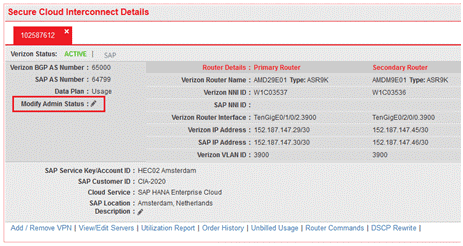
| 1 | Customer or Verizon | Once the port is provisioned, you or your Verizon Account Team logs into Dynamic Network Manager and select the Secure Cloud Interconnect port.
As highlighted, click on the pen following the “Modify Admin Status” field. |
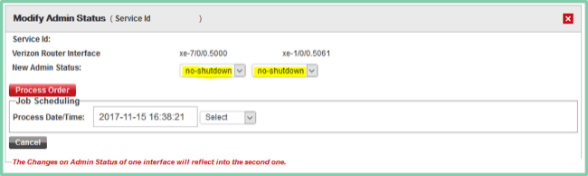
| 2 | Verizon and Customer | The following screen shot shows the page that will open once the “Modify Admin Status” pen is clicked on.
The following screen shot shows the page that will open once the “Modify Admin Status” pen is clicked on. |
Services and/or features are not available in all countries/locations, and may be procured from in-country providers in select countries. We continue to expand our service availability around the world. Please consult your Verizon representative for service availability. Contact us.