Equipment, Devices and Services
- Equipment, Devices and Services
- Wireless devices
- Routers
- Verizon Router
- Fios Router
- Fios Quantum Gateway
- Actiontec GT784WNV
- D-Link 2750B Gateway
- Verizon Business Internet Gateway XC46BE
- Verizon Internet Gateway Business FSNO21VA
- Verizon Business Internet Gateway ASK-NCM1100E
- Verizon Internet Gateway for Business (ASK-NCQ1338E)
- Arris NVG558 LTE Router
- Third Party Routers
- Discontinued networking equipment
- Fios Accessories
- Extenders
- Fios TV Equipment
- Equipment returns
- Fios Internet Service
- Fios TV Services
- Voice Services
eSIM Activation method - Laptop
Experience
Prerequisite(s):
BYOD and Verizon-sold Windows Laptops. Single device activation.
eSIM profile reserved with Verizon Sales-Assisted or via a Self-Service order via the Verizon My Business Portal.
Connect to WiFi (some exceptions apply)
Device Activation Process Steps:
Step 1
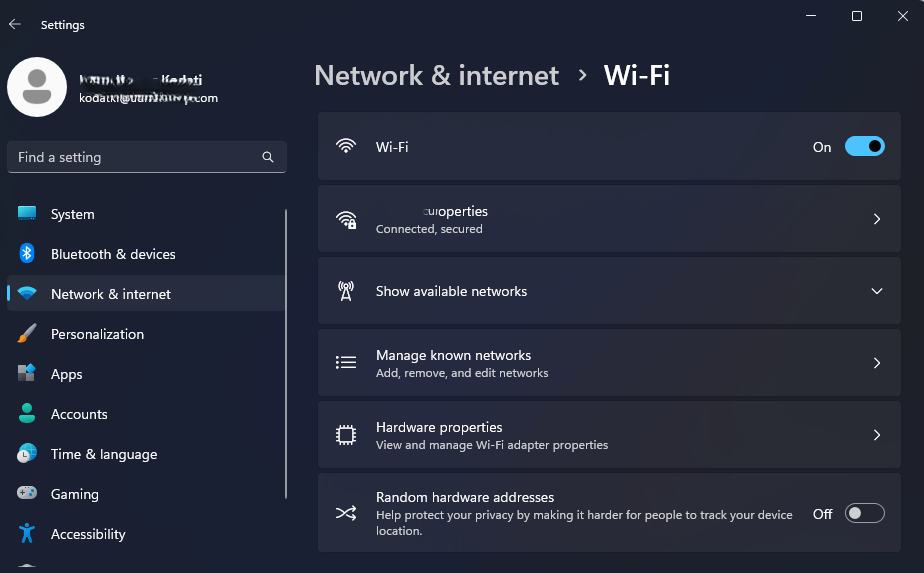
Connect to a Wi-Fi network with internet access that does not restrict to the internet sites necessary for activation (such as your home Wi-Fi or a mobile hotspot).
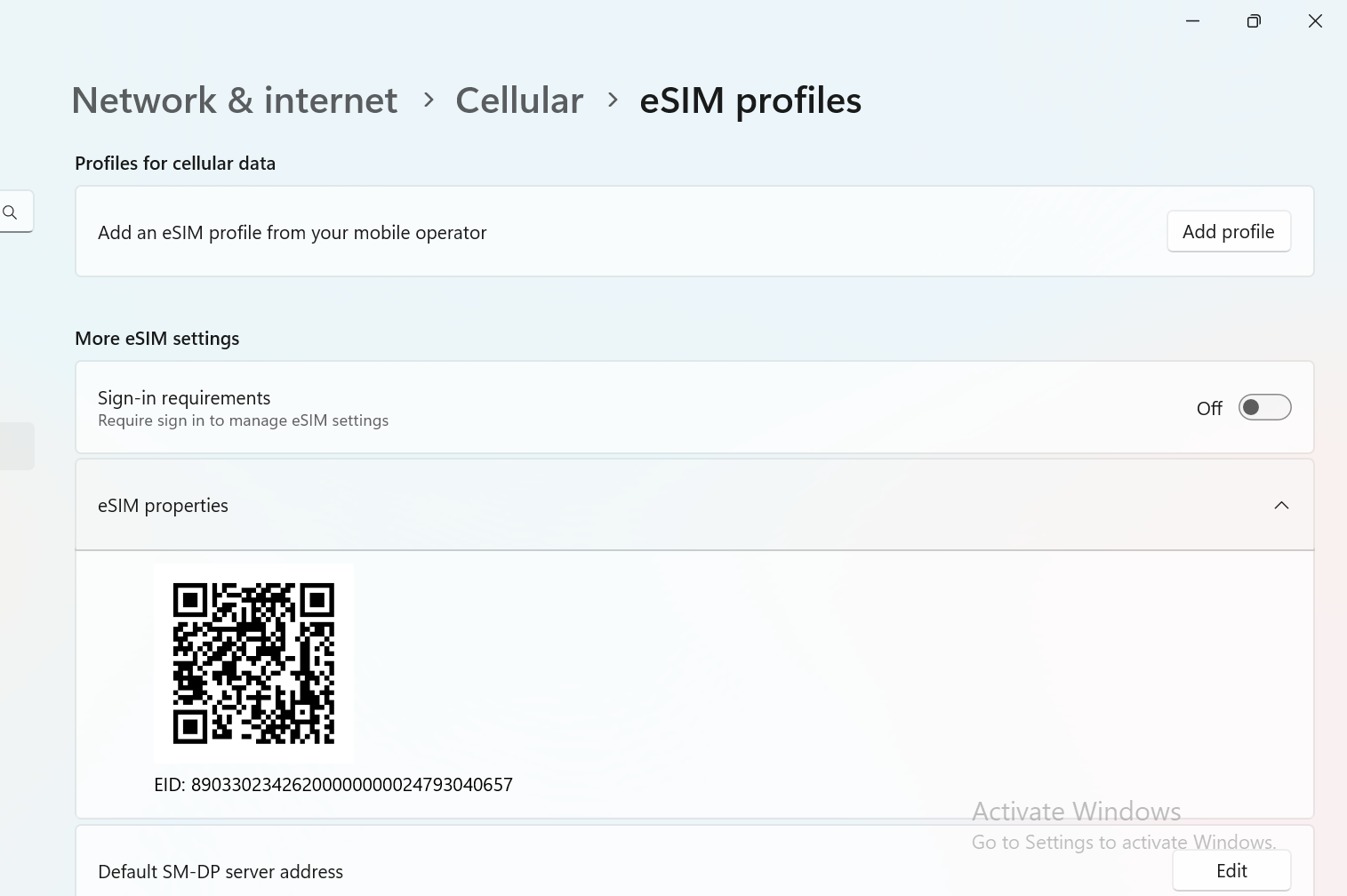
Step 4
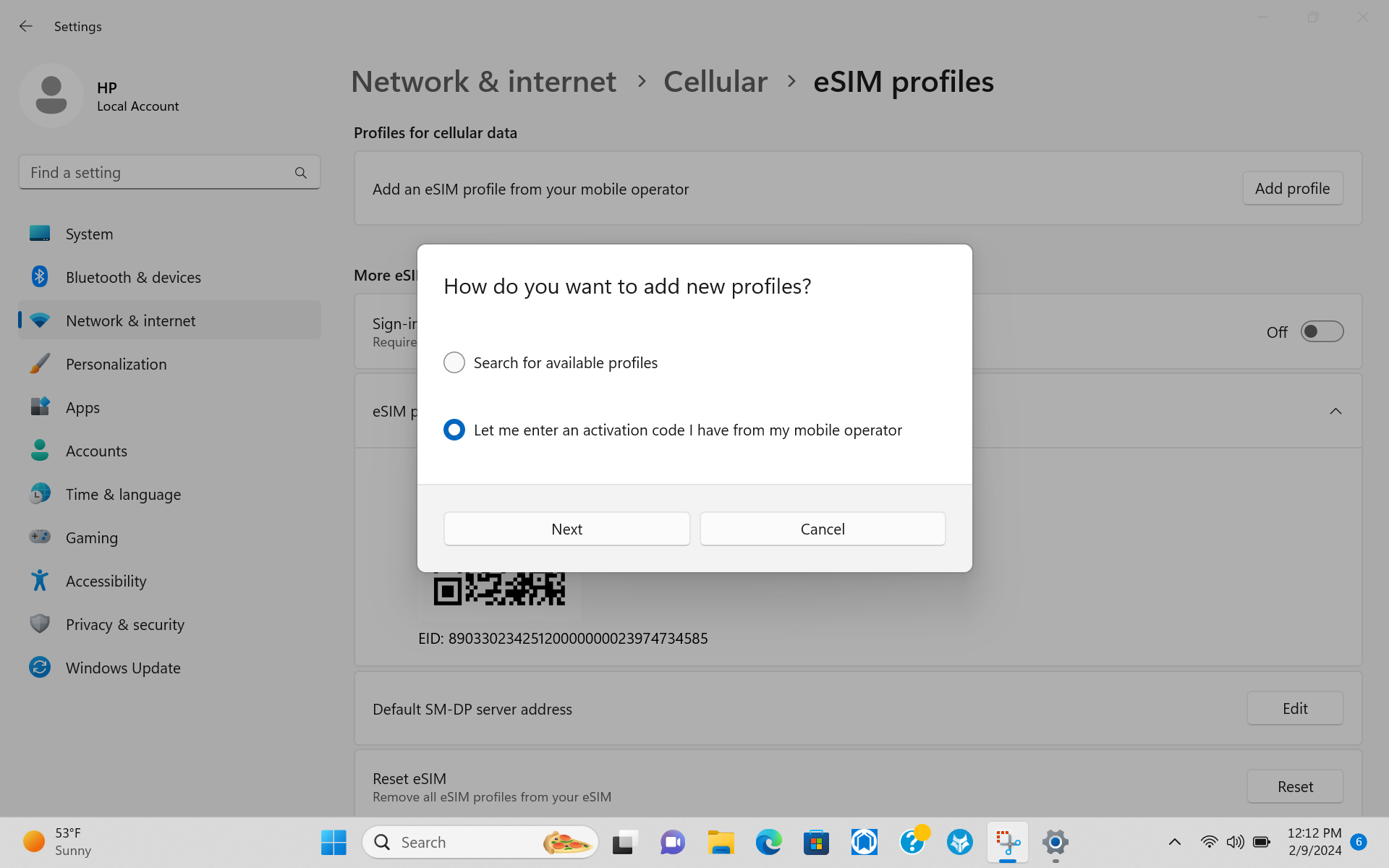
A popup will be displayed to choose between two different flows of eSIM activation.
4A "Search for available profiles"
4B "Let me enter an activation code I have from my mobile operator"
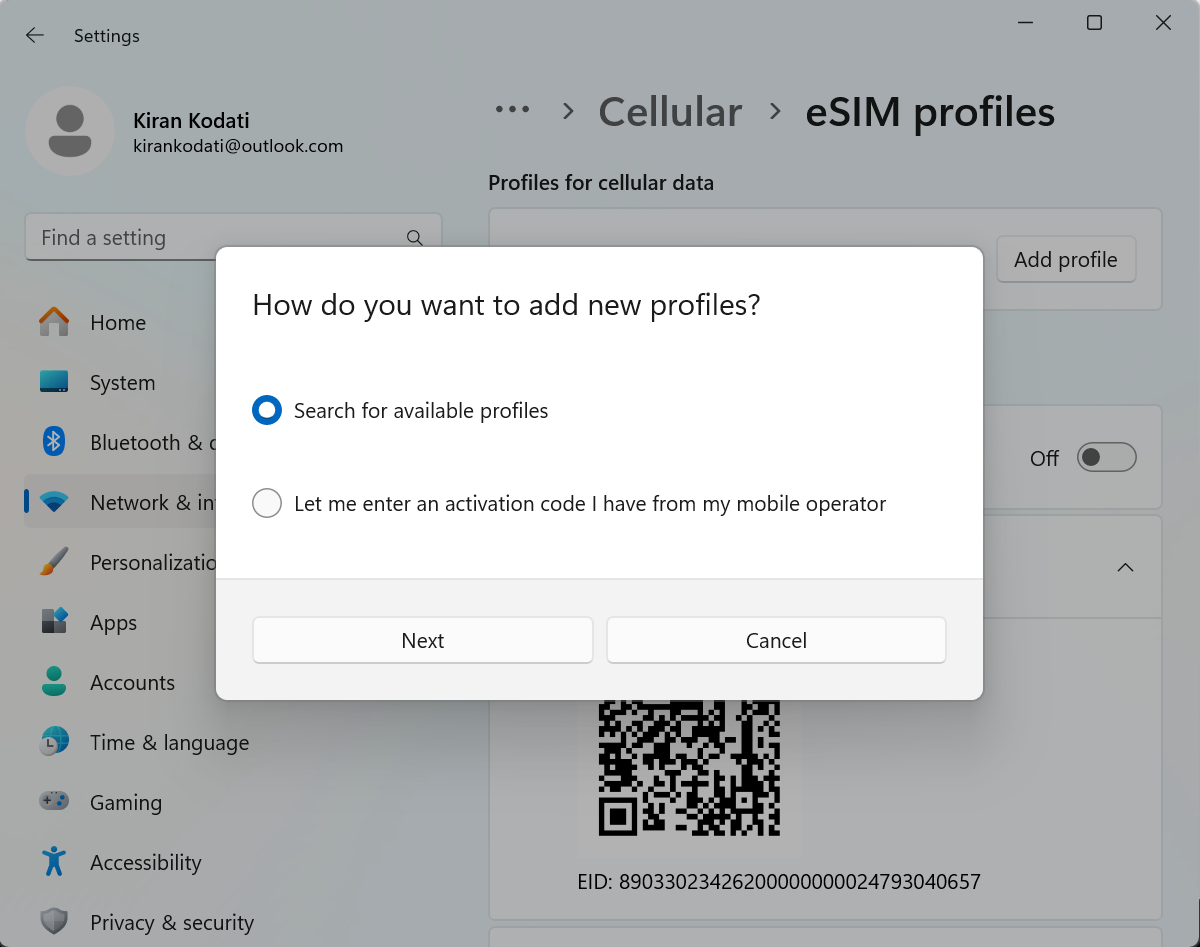
4A: “Search for available profiles” - you can choose this option if the laptop is “Discovery Server” (DS) enabled.
4A Step 1
If the eSIM profile is ready on the server and the laptop is Discovery Server enabled, search would retrieve the eSIM profile to download and install.
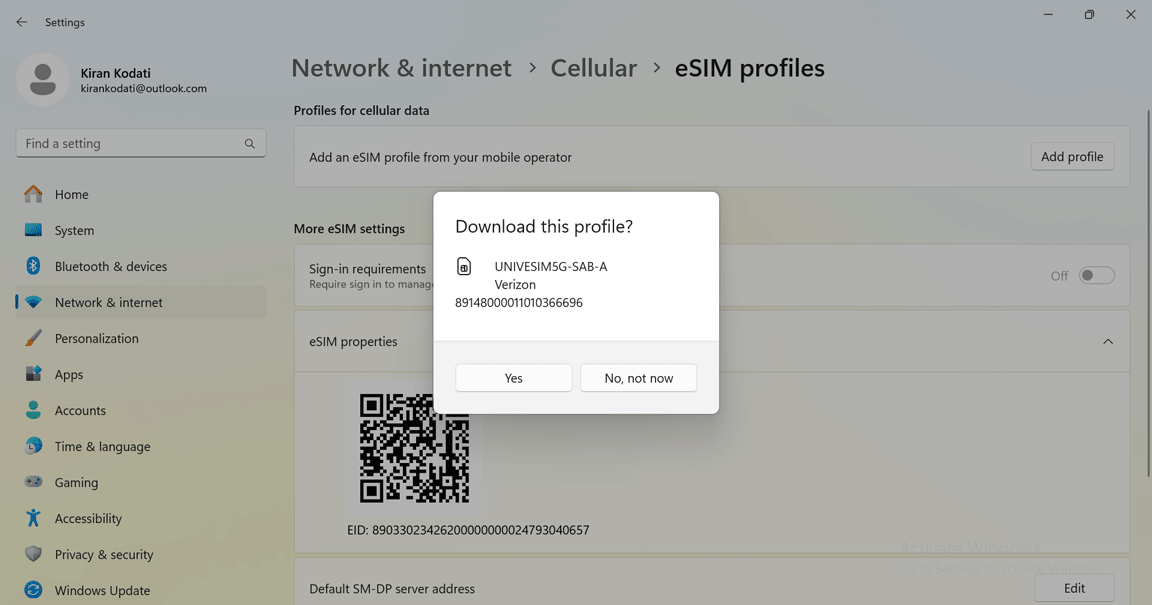
4A Step 2
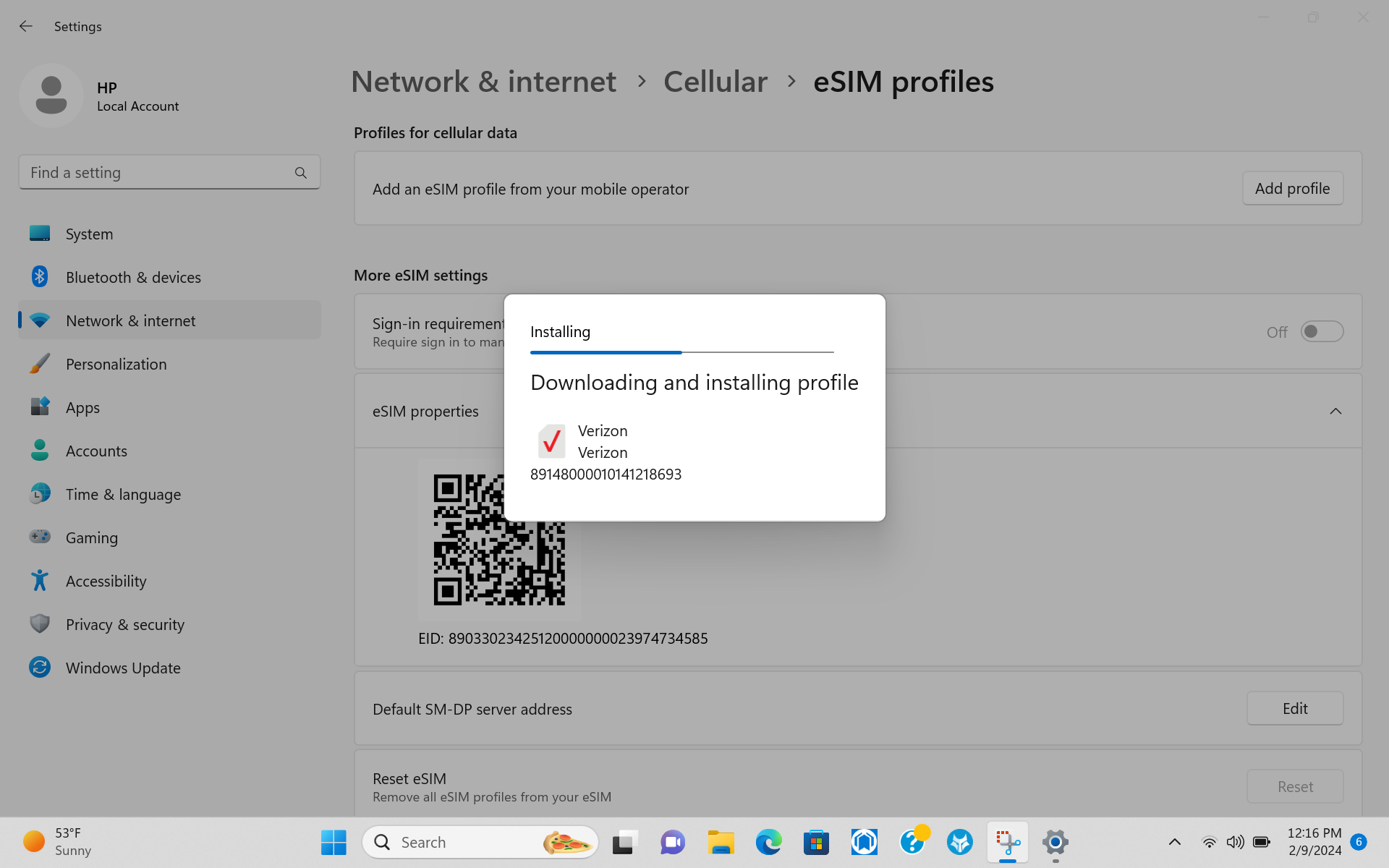
Select [Yes] to progress with eSIM download. The eSIM profile will automatically download and install.
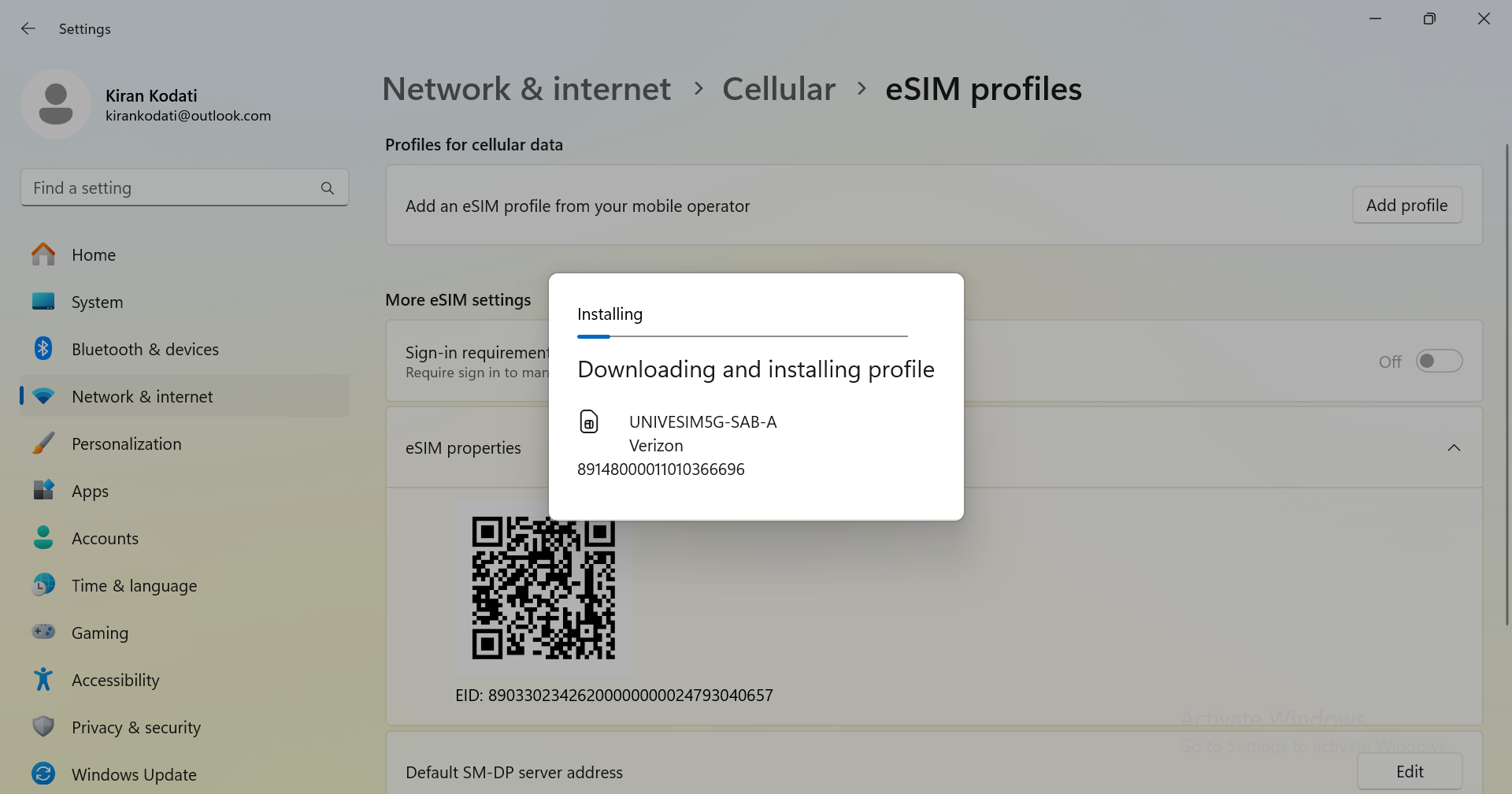
4B: “Let me enter an activation code I have from my mobile operator” - you can choose this option if the laptop is either “Discovery Server” (DS) enabled or disabled.
4B Step 1
Select “Let me enter an activation code I have from my mobile operator” and then click [Next].
4B Step 2
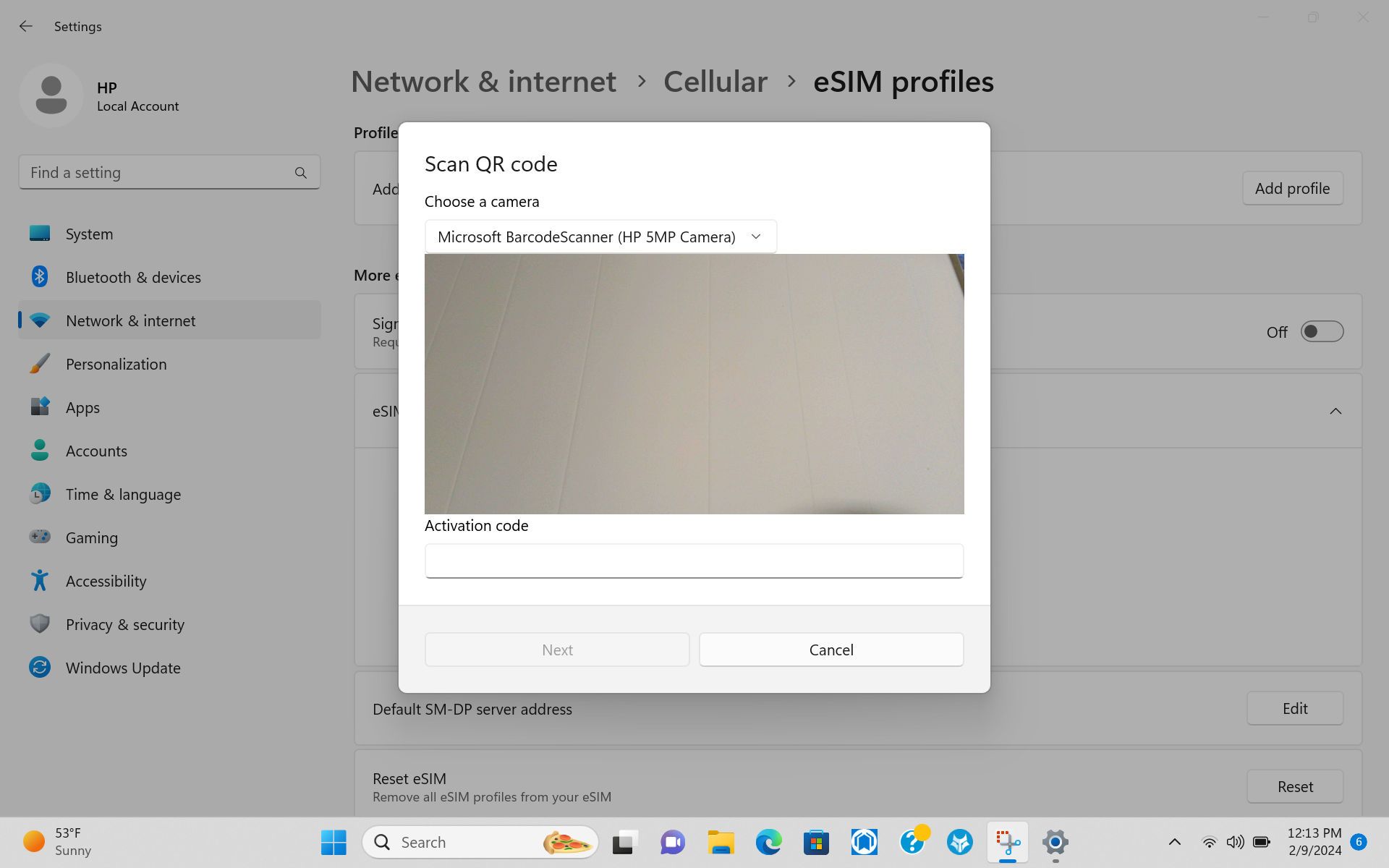
Hold the QR code below in front of your
laptop’s camera to scan it.

You also can find the QR code here: https://www.verizon.com/business/support/equipment-devices-services/wireless-devices/esim-support/
OR you can enter this Activation code: LPA:1$2.vzw.otgeuicc.com$
4B Step 3
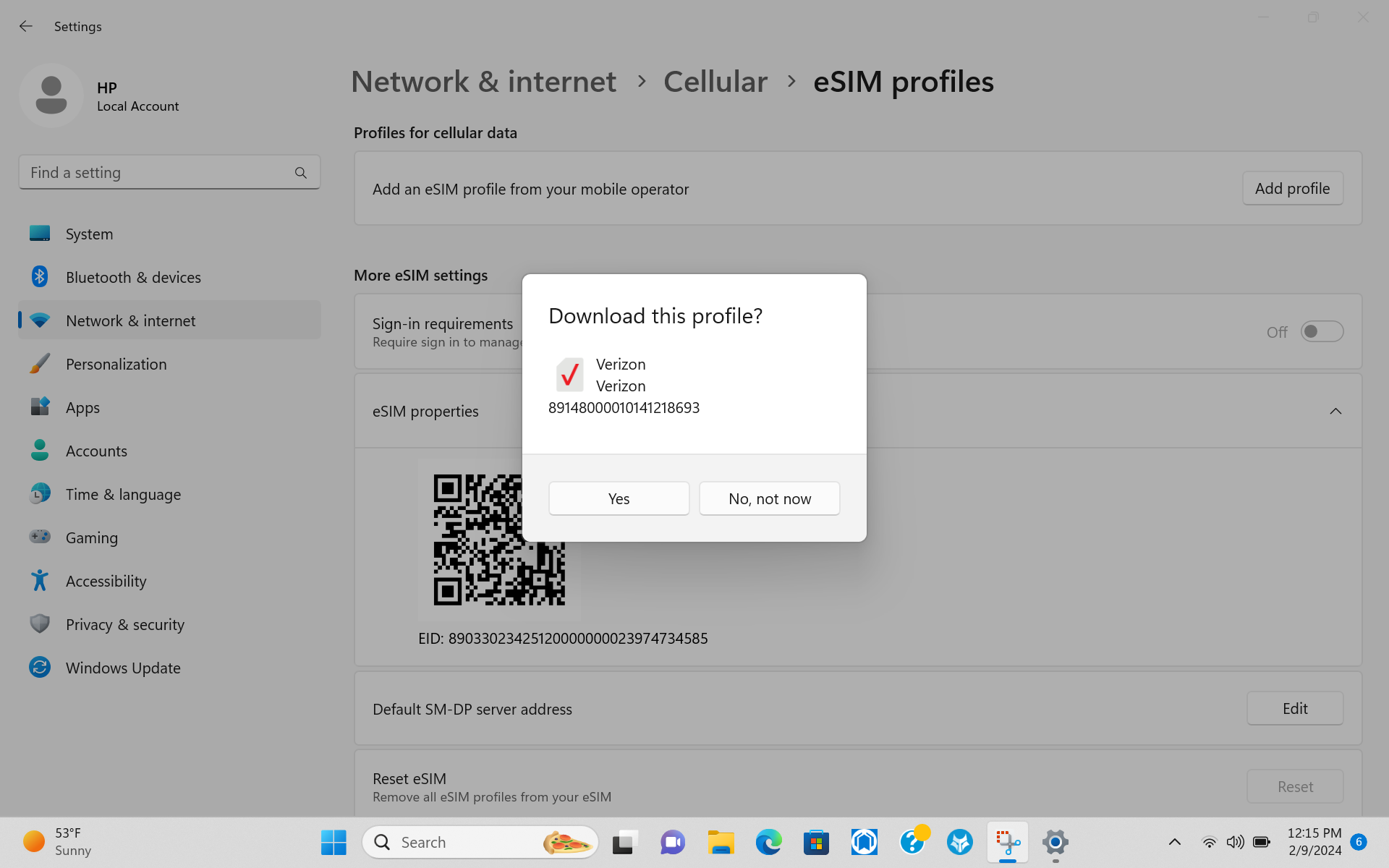
Once the “Download this Profile?” and activation code is displayed, click [Yes] to progress with eSIM download.
Step 6
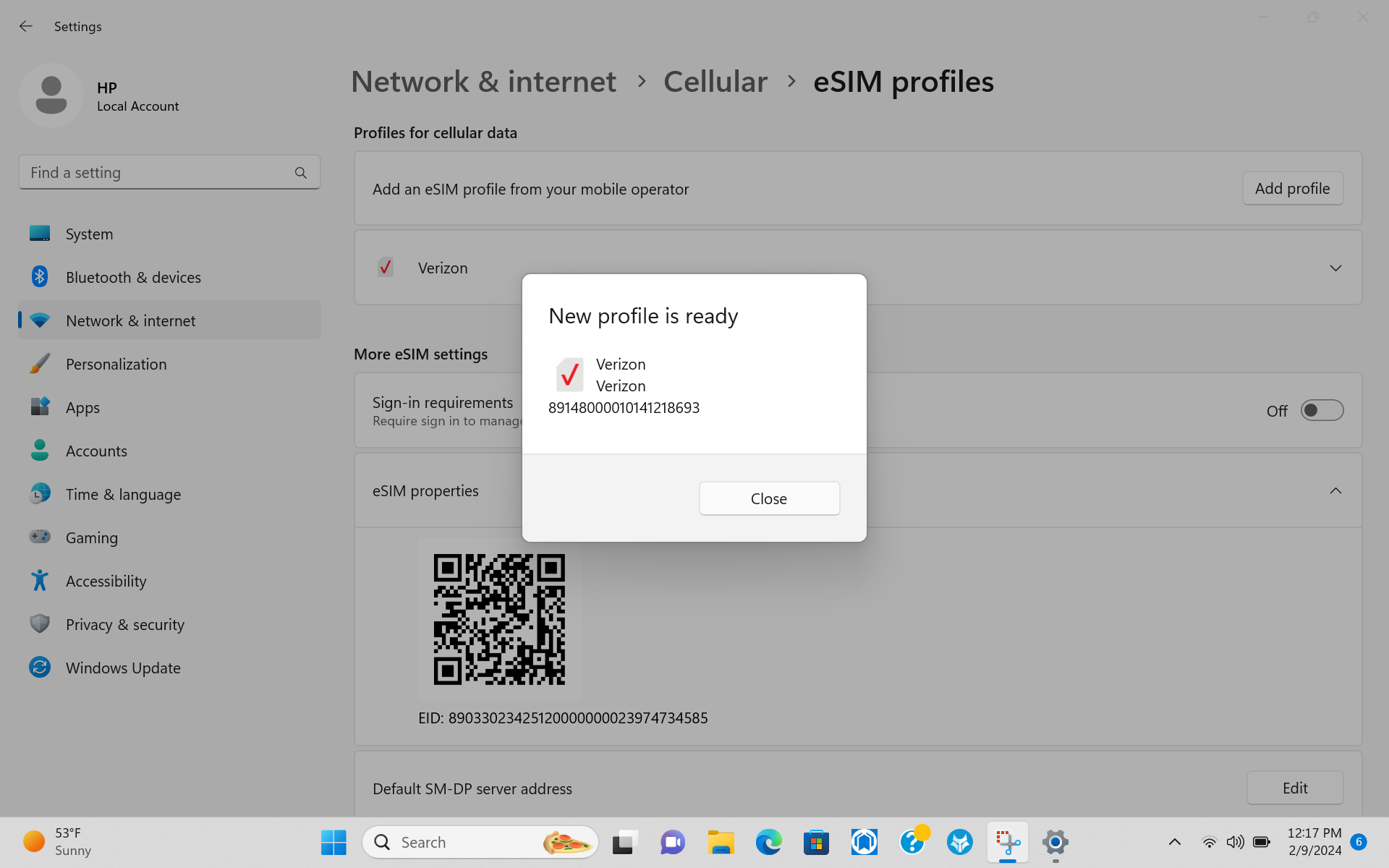
When the eSIM profile download is complete, you should see a “New profile is ready” message. Click [Close] to finish.
Step 7
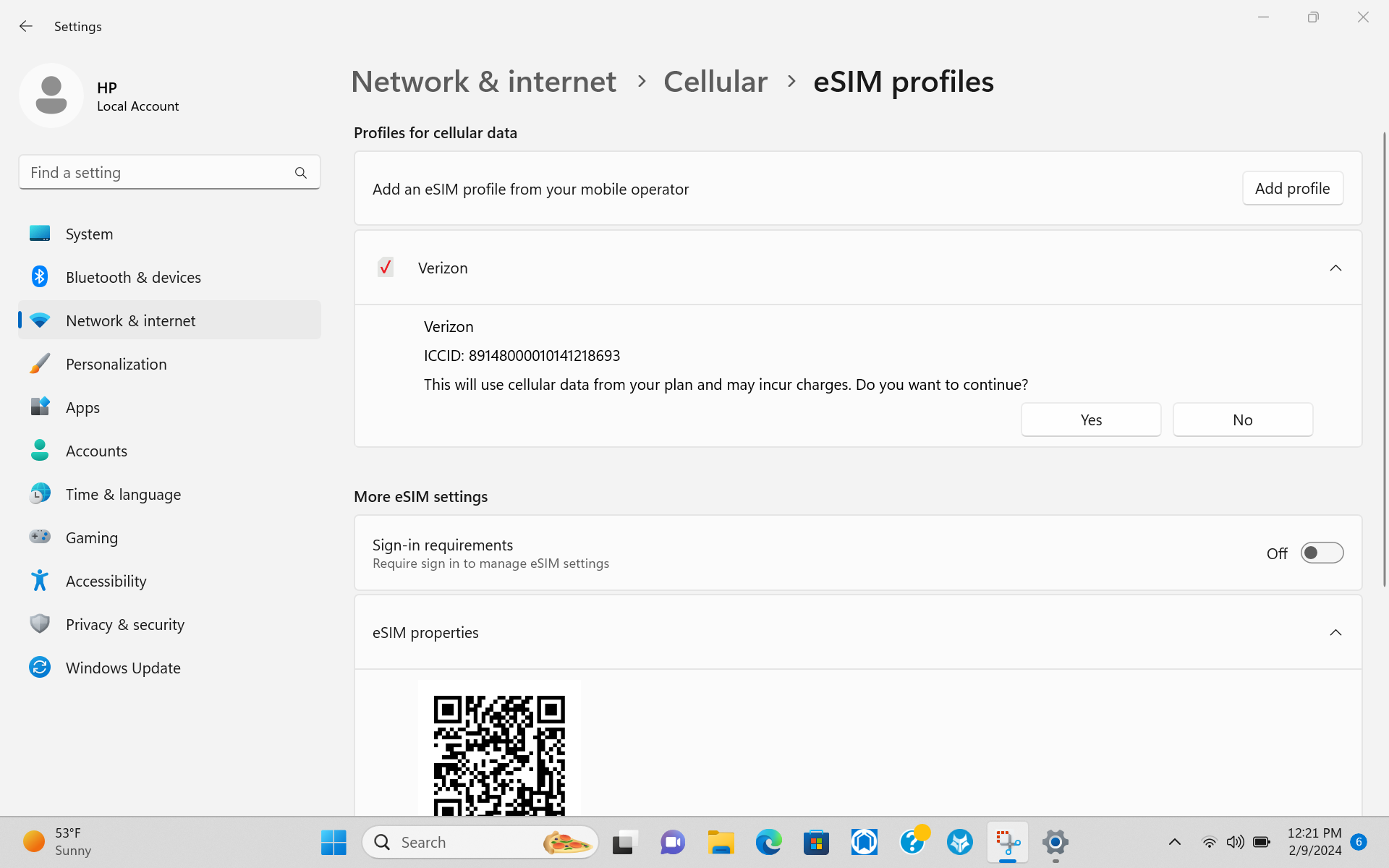
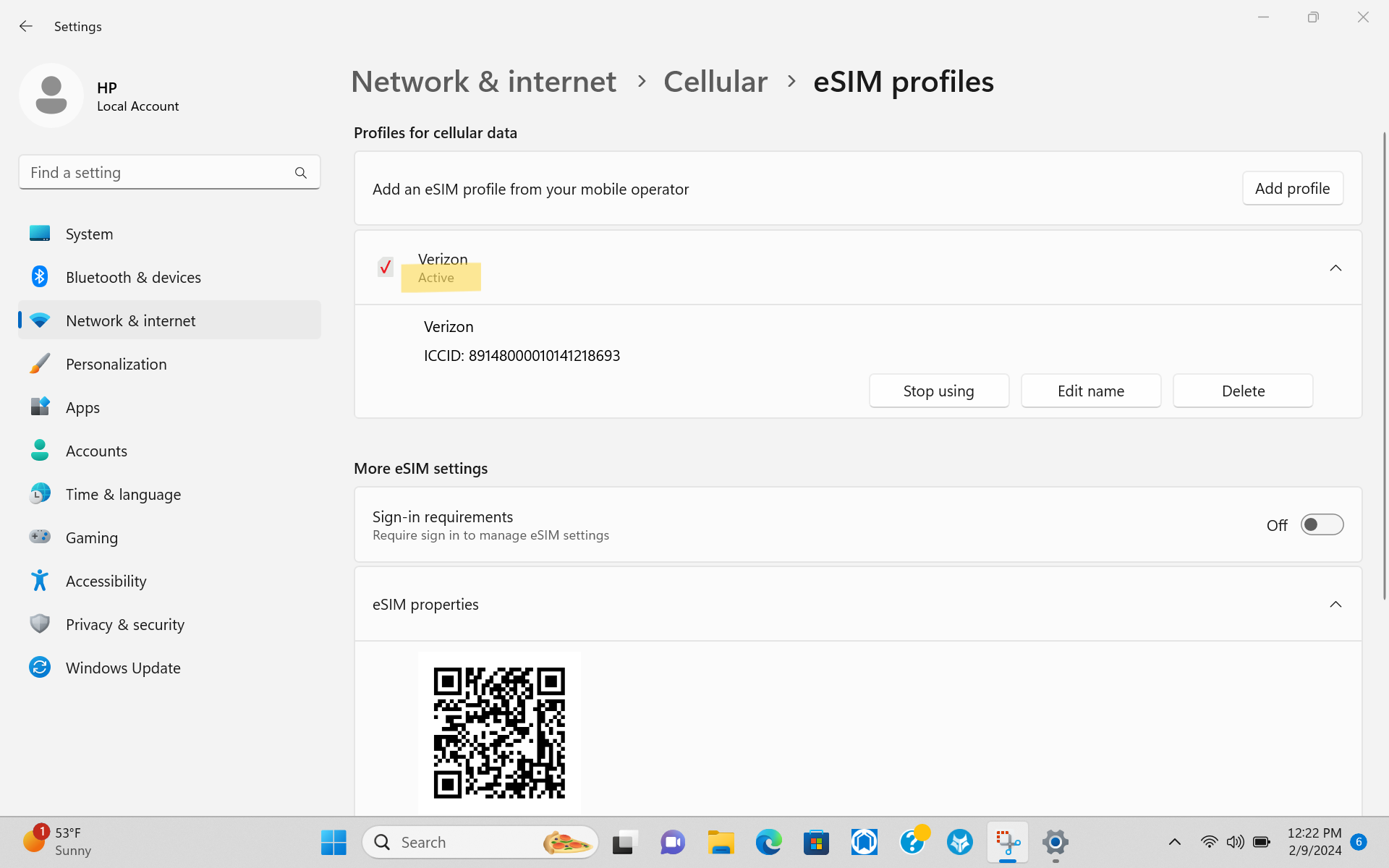
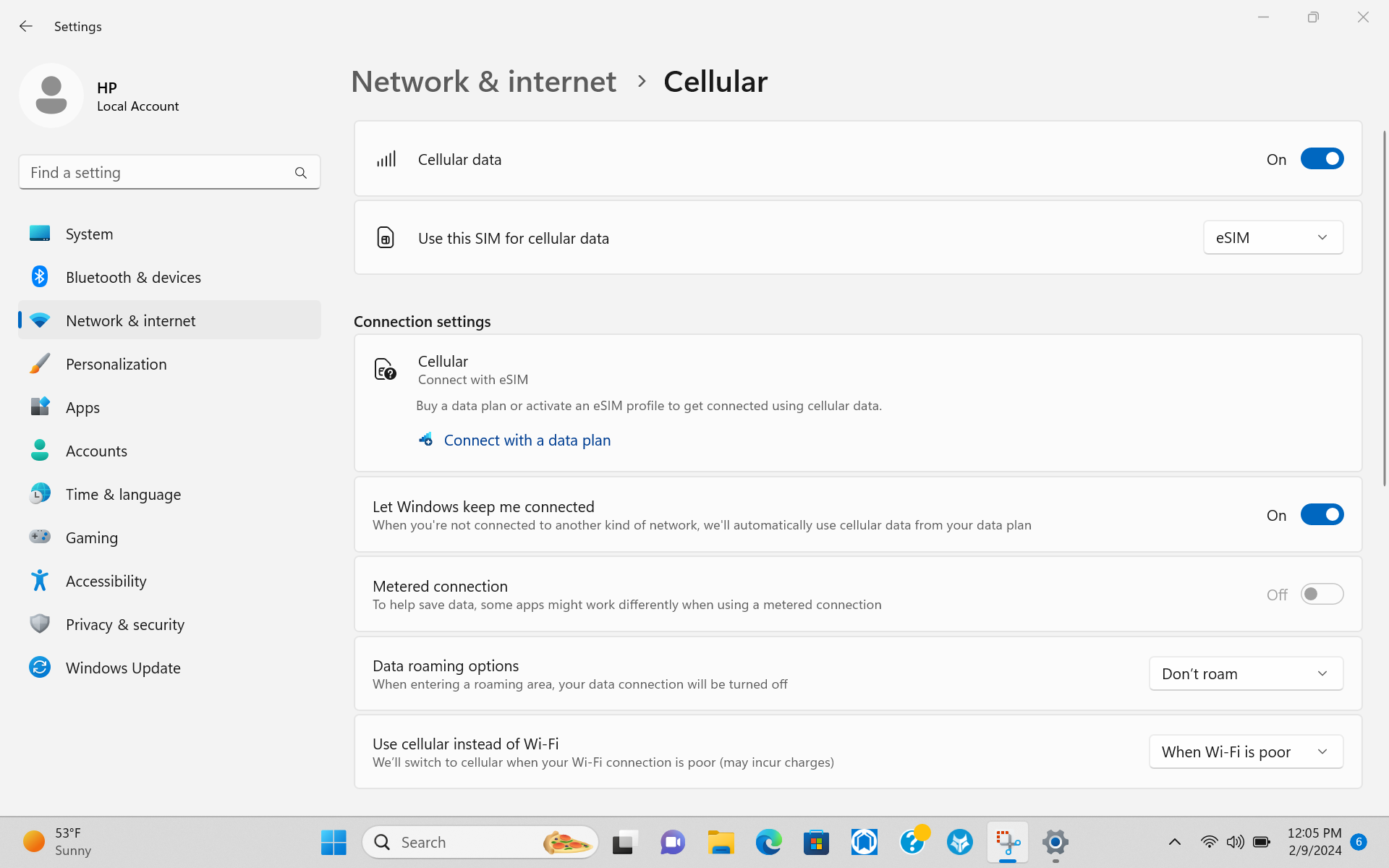
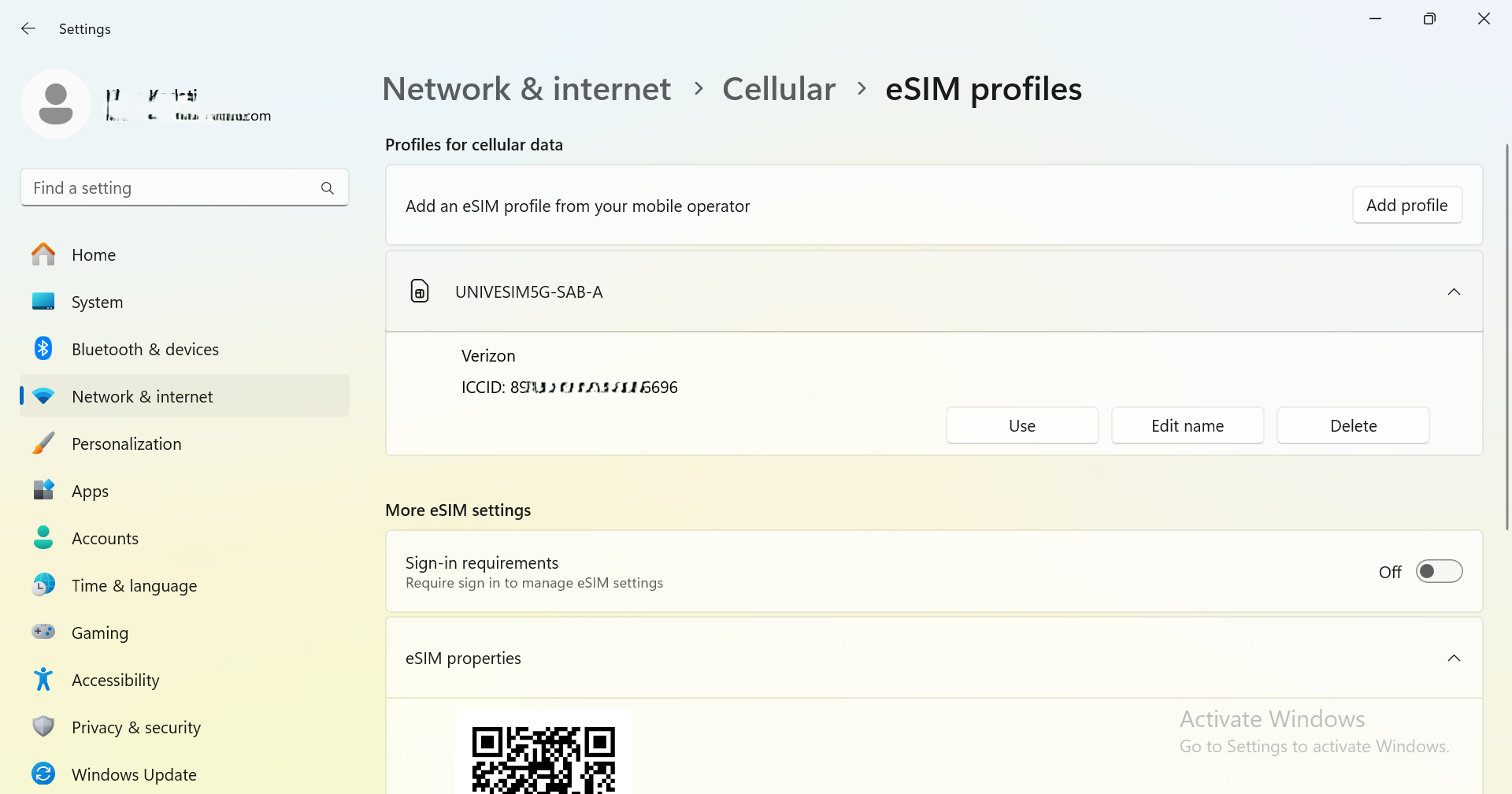
Under the “Profiles for cellular data” section of the eSIM profiles menu, select the Verizon profile and click [Use].
Step 8
When you see the message “This will use cellular data from your data plan and may incur charges. Do you want to continue?”, select [Yes].
If you see one or more pop-up windows that says “Configuring Mobile Broadband Device…”, please wait until the process is finished.